
In short
- Pick pages keeps the pages you choose as one new PDF.
- Every page a PDF makes one file per page, all in one ZIP.
- Split your PDF for free
A 40-page contract when the bank only needs the signature pages. A scanned pile of documents that should be five separate files. A course pack where you only want chapter three. Long PDFs often need to become shorter ones.
Splitting takes pages out of a PDF into new files without changing them. This guide shows the two ways to do it, choosing pages or one file per page, and how to name and check the results.
On EditFlip, step by step
- Step 1
Choose the PDF and press Split
On the EditFlip home page, press Choose files and pick the PDF. In the panel, press Split. You see every page with its number.
- Step 2
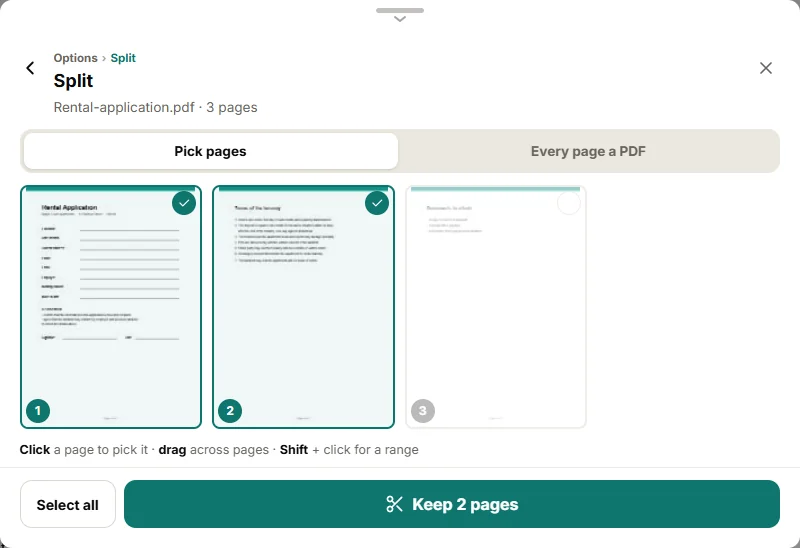
Pick pages, or every page
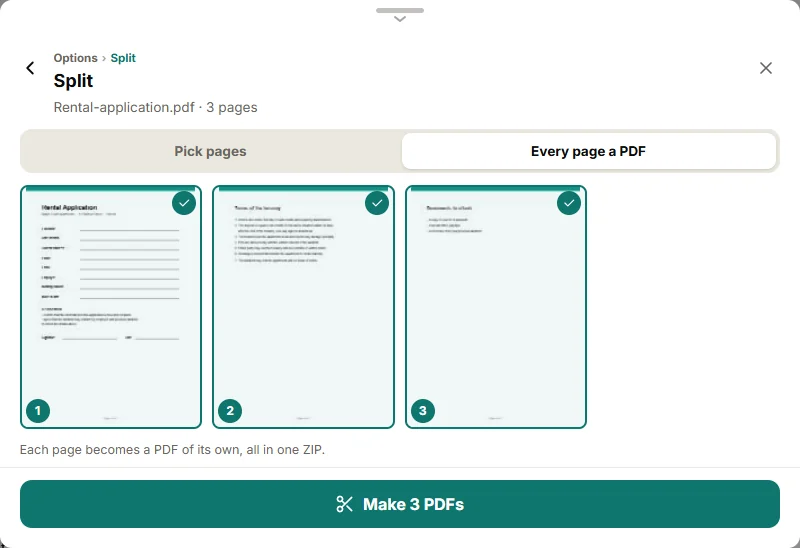
In Pick pages, click the pages you want. Drag across pages to pick a row of them, or Shift and click for a range. Every page a PDF instead makes one PDF for each page.
- Step 3
Keep them and download
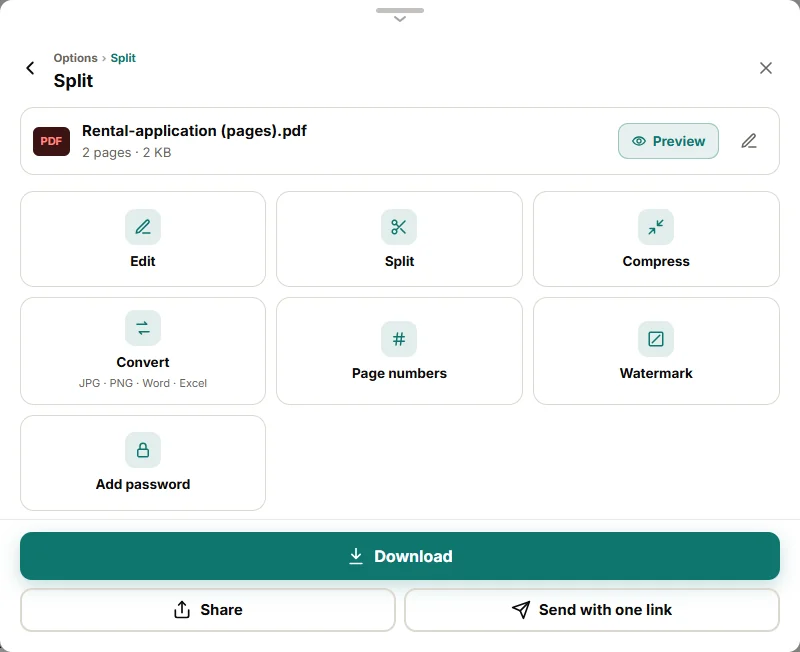
Press Keep 2 pages, or Make 3 PDFs. A new PDF with the chosen pages is ready to download. Every page a PDF gives you all the files together in one ZIP.
Two ways to split
Pick pages is for taking a part out. You choose the pages, and they become one new PDF in their original order. The original file stays as it was.
Every page a PDF is for breaking a document apart completely. A ten page PDF becomes ten files, named after the original with the page number, packed in one ZIP so they download together.
Choosing many pages quickly
Clicking pages one by one is fine for a few. For more, drag across them to pick a run in one move, or click the first page, hold Shift and click the last to pick everything between.
Select all picks the whole document, which is a quick start when you want everything except a few pages: select all, then click the ones to leave out.
Split or delete pages
Splitting and deleting can reach the same result. If you want most of the document and only need to remove a page or two, deleting them in the editor is quicker.
If you want a small part of a long document, or several separate parts, splitting is the clearer way, because you choose what to keep instead of what to throw away.
On a Mac: Preview
Preview can make a new PDF from some of the pages by dragging thumbnails. Apple notes that you can create a new PDF by dragging thumbnails from a PDF’s sidebar to the desktop.
For a file per page across a long document, a tool that does all pages at once saves a lot of dragging.
Nothing changes on the pages
The pages are copied into the new PDF as they are. Text stays selectable and images keep their quality.
Each new file only carries its own pages, so a short part of a big scanned PDF is usually much smaller than the original.
After splitting
Open each new file once and check the first and last page, especially when you picked a range with Shift.
Give the files clear names before you send them, like “Contract signature pages” rather than “(pages)”. The pencil next to the file name renames it.
Keep the pages you pick as a new PDF, or make every page its own PDF. Free, no account, and your PDF stays on your device.
Split a PDF on EditFlip →Questions
How do I split a PDF into separate pages?
On EditFlip press Split, choose Every page a PDF and press Make PDFs. You get one PDF per page in a ZIP.
Can I take out only some pages?
Yes. In Pick pages, click the pages you want, then press Keep. They become one new PDF.
Does splitting change the quality?
No. The pages are copied as they are, so text and images stay the same.
Is my PDF uploaded?
No. EditFlip splits it inside your browser, so it never leaves your device.