
In short
- Open the PDF’s pages, tick the ones to remove, press Delete.
- The other pages stay exactly as they were, nothing is re-typed.
- Delete PDF pages for free in your browser
A scan with a blank back page between every sheet. A contract where page 4 is an old draft. A bank statement you need to send, minus the page with everything else on it. Very often a PDF is right except for one or two pages.
Removing them does not mean rebuilding the file. The pages you keep are copied as they are, with their text, images and quality. Here is how to do it in a minute, and what to look at before you send the shorter file.
On EditFlip, step by step
- Step 1
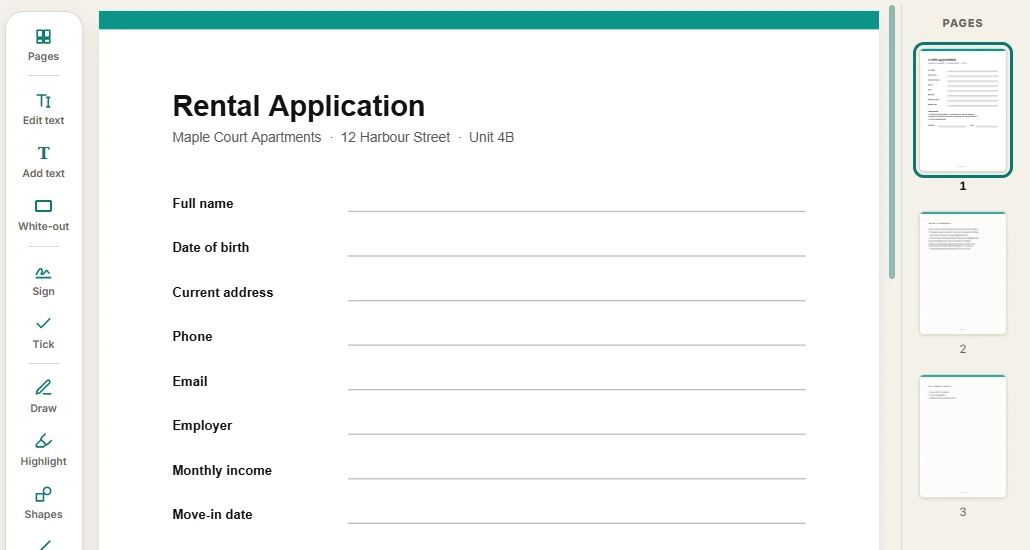
Open the PDF in the editor
On the EditFlip home page, press Choose files and pick the PDF, then press Edit. The first tool on the left is Pages.
- Step 2
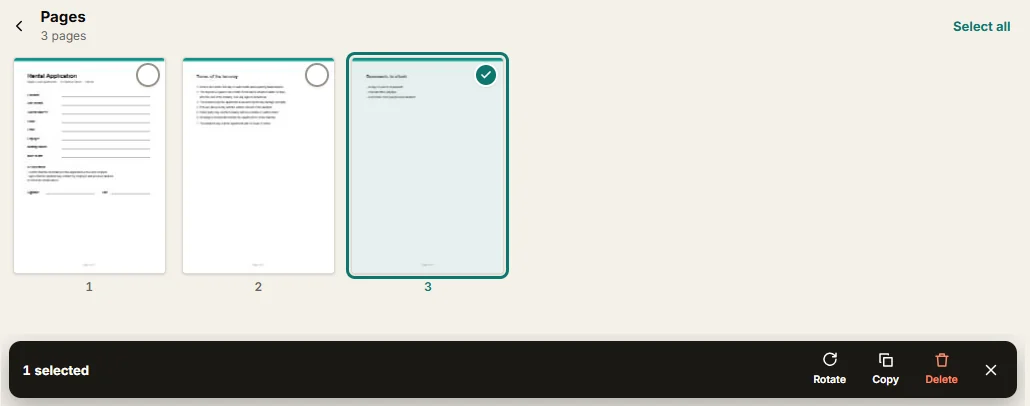
Choose the pages to remove
Press Pages to see every page small. Click the circle on a page to choose it, or several pages, or Select all. A bar appears at the bottom with Rotate, Copy and Delete.
- Step 3
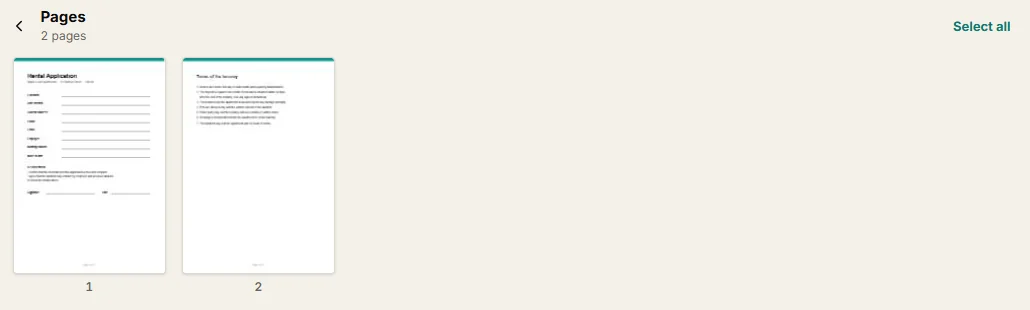
Press Delete
The chosen pages are gone and the count at the top changes. Nothing is final until you press Done, and Undo brings a page back if you removed the wrong one.
- Step 4
Press Done and download
Press Done to go back to the pages, then Done again. The new PDF is ready with “(edited)” in its name. Press Download.
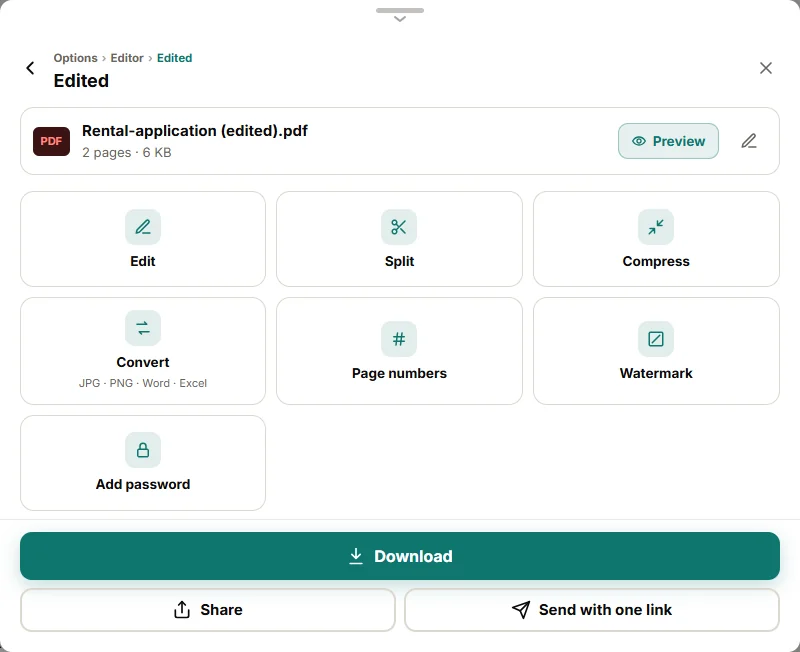
Deleting keeps everything else as it was
When you delete pages, the pages that stay are not redrawn or converted. Their text stays selectable, images keep their quality, and the file usually gets smaller by about the size of what you removed.
That is why deleting pages is safer than printing the document again to a new PDF, which makes a copy of how the pages look rather than the pages themselves.
Choosing several pages at once
In EditFlip’s Pages view every page has a small circle. Click the circles of all the pages you want out, then press Delete once. If you need to remove most of a document, press Select all and then click the circles of the pages you want to keep to take them out of the choice.
The same bar can turn pages the right way with Rotate, or make a second copy of a page with Copy, so a scan that came out sideways can be fixed in the same visit.
On a Mac: Preview
Preview can delete pages too. Apple’s steps: choose View > Thumbnails or View > Contact Sheet, select the page or pages, then press the Delete key or choose Edit > Delete.
Apple also notes that when you delete a page, all the annotations on that page are removed as well. That is what you want for a page you are throwing away, but worth knowing if notes on it matter.
On Windows without extra software
Windows 10 and 11 include a printer called Microsoft Print to PDF. Some people “delete” pages by printing only the pages they want to a new PDF.
It works, but the result is a new print of the pages. Links and form fields may not survive it, and a long document becomes a slow job. Deleting the pages in an editor keeps the original pages.
Page numbers printed on the pages
If the document has numbers printed at the foot of each page, they do not change when you remove a page. After deleting page 3 of 10, the old page 4 still says “4”.
For a document that will be read in order, remove the pages first and then add new page numbers, so they run without a gap.
Before you send it
Open the new PDF and count the pages. Check the page just before and just after each one you removed, since that is where a wrong click shows.
Keep the original file until the new one has been accepted. EditFlip saves the result as a new file and leaves yours untouched.
Choose the pages, delete them, download a new PDF. Rotate and copy pages in the same place. Free, no account, and your PDF stays on your device.
Delete pages on EditFlip →Questions
Can I delete several pages at once?
Yes. Click the circle on each page you want to remove, then press Delete once. Select all chooses every page.
Does deleting pages lower the quality?
No. The pages you keep are copied as they are, so their text and images do not change.
I deleted the wrong page. Can I get it back?
Yes, press Undo in the editor before you press Done. Your original file is never changed either.
Can I do it on my phone?
Yes. EditFlip works in the browser on a phone too. In Pages, tap a page’s circle to choose it.