
In short
- A PDF can be edited in place: change a line, add text, sign, then download.
- Opening it in Word makes a converted copy that may not look like the original.
- Edit your PDF for free in your browser
A PDF is made to look the same everywhere, which is exactly why it feels locked. You get a contract with the wrong date, a form that wants your name on a line, a letter with a typo in the address, and the file seems to refuse every change.
It does not have to. You can change the text that is already on the page, type new text where it is missing, cover a mistake and write over it, then save a new PDF that looks like the original. This guide shows how, and when another way is the better choice.
On EditFlip, step by step
- Step 1
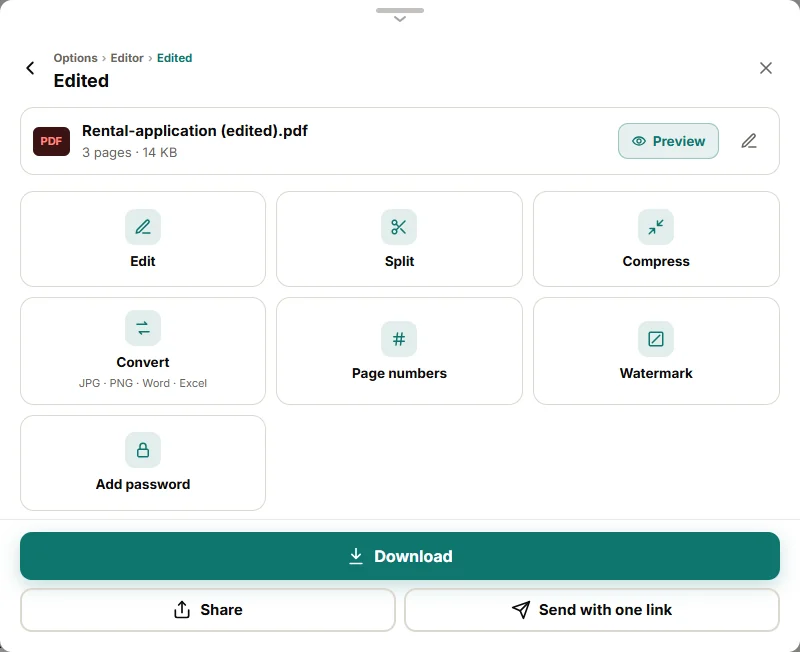
Choose your PDF and press Edit
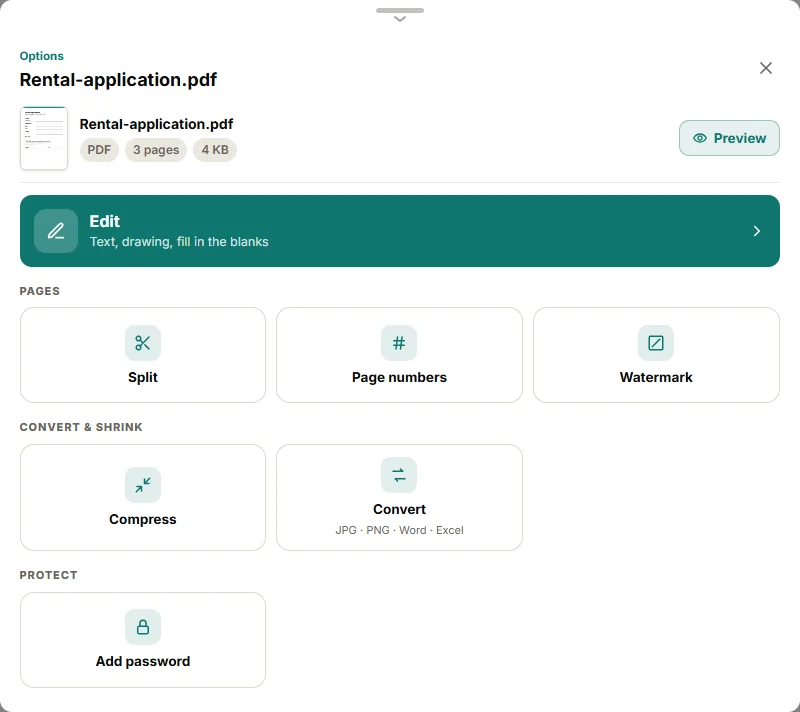
On the EditFlip home page, press Choose files and pick the PDF, or drop it on the page. A panel opens with what you can do with the file. The big button on top is Edit.
- Step 2
Change the text that is already there
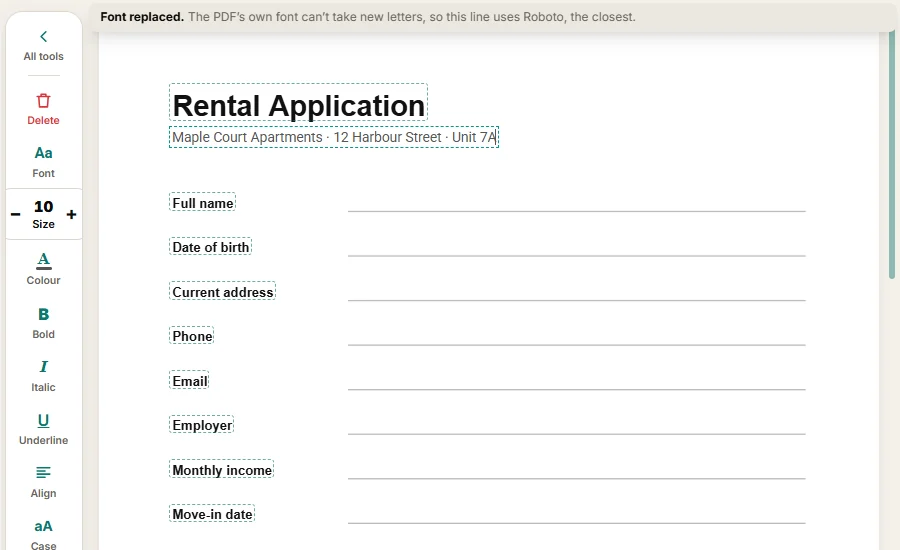
In the editor, pick Edit text in the tools on the left and click a line on the page. The lines become boxes you can type in. Click where you want to change something, delete and type. The line keeps its place, size and colour.
- Step 3
Add your own text
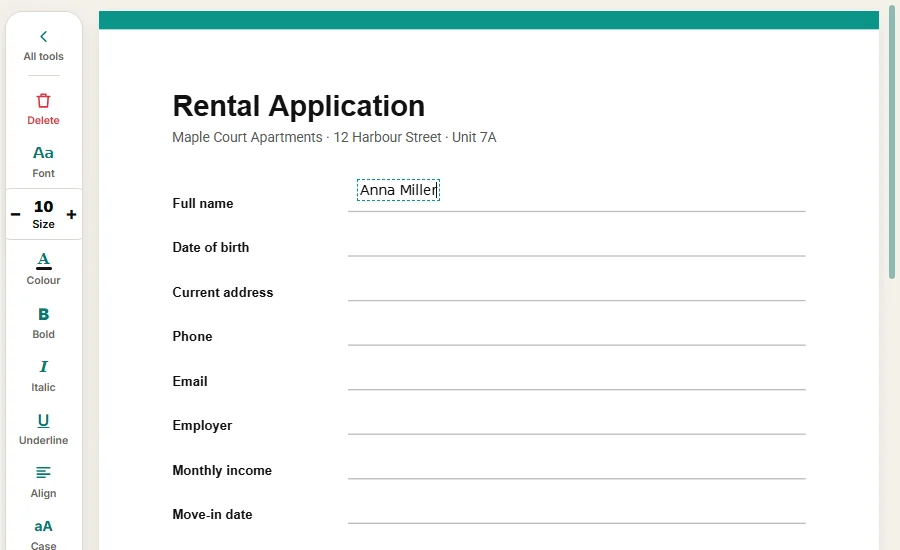
Go back to All tools and pick Add text, then click the spot on the page and type. Size, colour, bold and alignment are in the same toolbar. White-out, Sign, Tick and Draw sit under it for the rest of the job.
- Step 4
Press Done and download
When the page looks right, press Done. You get a new file named like the original with “(edited)” at the end. Press Download, or Share on a phone.
What “editing a PDF” can mean
Most of the time it is one of three jobs. Fixing words that are already there, like a wrong date or a misspelled name. Adding words that are missing, like your details on a form. Or marking the page, like a signature, a tick or a highlighted line.
Knowing which one you need saves time. Adding text and signing work on any PDF. Changing existing words depends on the PDF having real text in it, which most documents made on a computer do.
Why the font sometimes changes
Many PDFs carry only the letters they actually use from a font, not the whole font. When you type a letter that was not in the document, there is nothing to draw it with. EditFlip tells you when that happens with a short note, “Font replaced”, and uses the closest font it has for that line.
On a form or a letter the difference is usually hard to see. On a designed page, like a brochure, compare the line with its neighbours before you send it.
Scanned PDFs are pictures of text
A page that came out of a scanner or a phone camera is a photo inside a PDF. There are no letters to click, so Edit text has nothing to change.
You can still correct it. Cover the old words with White-out, which paints a box in the colour of the paper, then put the new words on top with Add text. For a long scanned document that needs a lot of rewriting, converting it to Word first is often quicker.
Editing in Word: a converted copy
Microsoft Word can open a PDF, but it does not edit the PDF itself. Microsoft explains that Word makes a copy, converts it to a Word document and tries to match the layout, and that the result might not look exactly the way it looked as a PDF.
That is a good route when you want to rewrite whole paragraphs. Microsoft also notes it works best with files that are mostly text, and that a page made mostly of charts or graphics may come in as an image whose text cannot be edited. For a few changes on a page that must keep its look, editing the PDF directly is safer.
Preview on a Mac adds, it does not change
Apple’s Preview is handy for adding text boxes, notes and signatures to a PDF. Apple says plainly that you can’t edit the text of a PDF in Preview, so a wrong word in the document itself stays as it is.
If you are on a Mac and need to change existing words, use an editor that rewrites the line, such as EditFlip in Safari or Chrome.
Check before you send
Open the new file once before you send it. Look at every line you changed, the spacing around it, and the pages you did not touch.
Keep the original as well. EditFlip saves the result as a new file and leaves yours as it was, so you can always start again.
Change existing text, add your own, white out, sign and tick, then download a new PDF. Free, no account, and the file stays on your device.
Edit a PDF on EditFlip →Questions
Can I edit a PDF without Adobe?
Yes. EditFlip edits PDFs in the browser on a computer or a phone, with nothing to install and no account.
Why can’t I change the text in my PDF?
The page is probably a scan, which is a picture of text. Cover the words with White-out and type the new ones with Add text.
Is my PDF uploaded anywhere?
No. EditFlip opens and saves the file inside your browser, so it stays on your device.
Will the edited PDF look the same?
Yes, apart from the lines you change. If the PDF’s own font cannot take new letters, that line uses the closest font and EditFlip tells you so.