
In short
- Pick Add text and click a line of the form: your words sit on it.
- Forms without boxes to click can be filled the same way.
- Fill out your PDF form for free
Rental applications, school forms, visa questionnaires, warranty claims. Many forms arrive as a PDF with lines to write on, and the instructions say “print, fill in, scan and return”.
You can skip the printer. Some PDFs have boxes you can click and type in, many do not, and both can be filled in on a screen. This guide shows how to type on the lines, sign at the bottom, and send a form that looks neatly filled in.
On EditFlip, step by step
- Step 1
Open the form in the editor
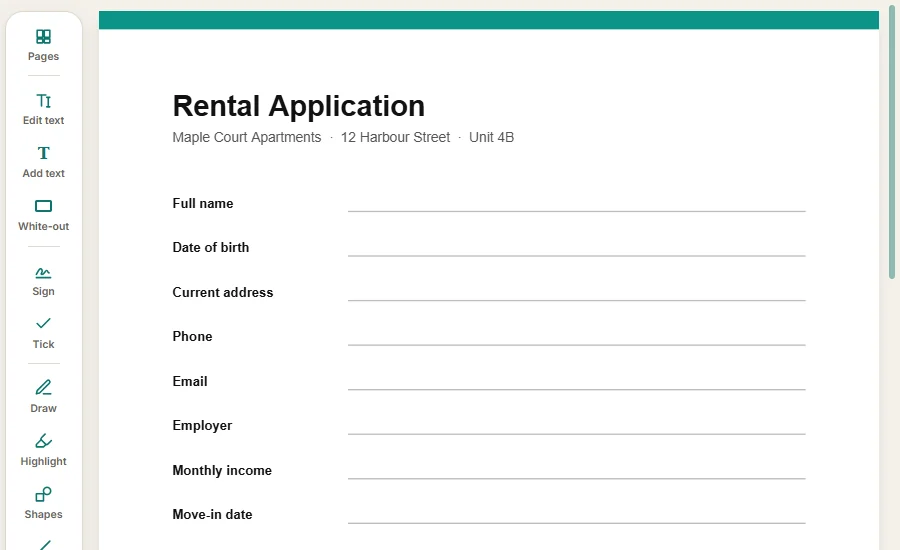
On the EditFlip home page, press Choose files, pick the PDF form and press Edit. The form opens with the tools on the left.
- Step 2
Type your answers on the lines
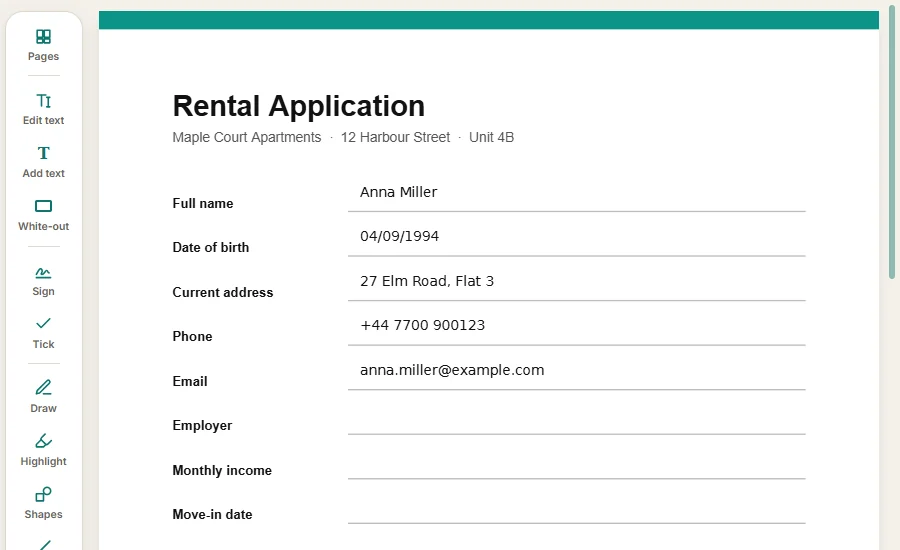
Pick Add text and click the line you want to fill. Your text sits on the line in a size that matches the form. Type, then go back to All tools and Add text for the next line.
- Step 3
Sign and date it
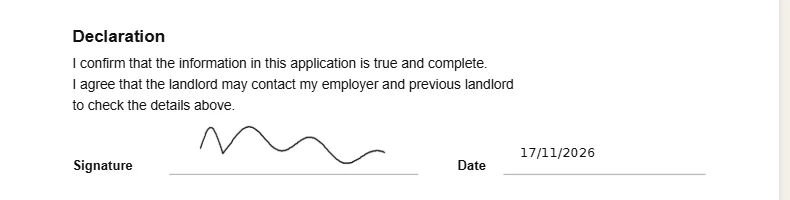
Press Sign, draw your signature and put it on the signature line. Add the date next to it with Add text.
- Step 4
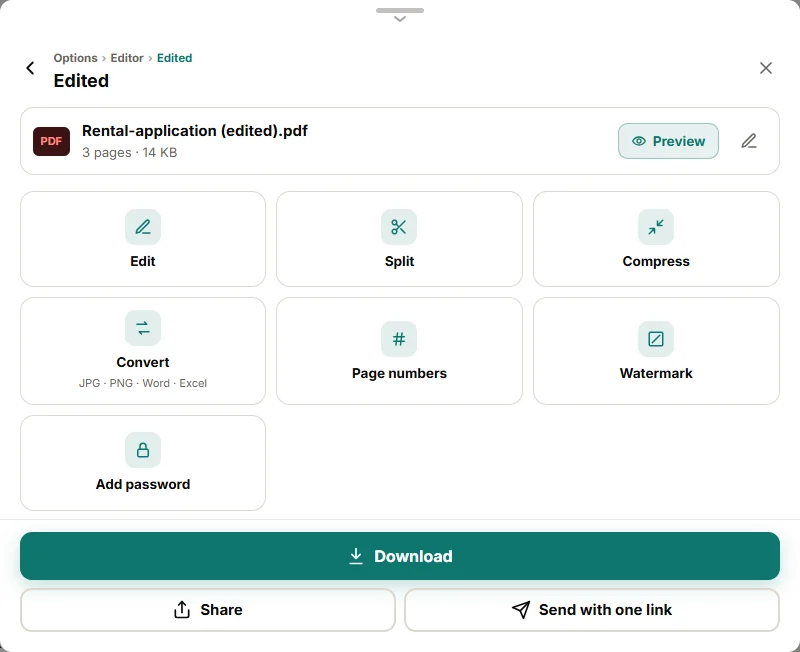
Press Done and download
Press Done, then Download. Send the filled-in copy back, and keep the empty original for next time.
Fillable and flat forms
Some PDF forms are fillable: they have boxes you can click and type into, made by whoever designed the form. Others are flat: just a page with lines, often a scan or a document saved as PDF. From the outside they look the same.
EditFlip works on both. It finds the lines a form leaves to be filled, so the text you add sits on them at the right size. On a scanned form it looks at the picture of the page, so the lines are found there too.
Making it look neat
Start each answer at the beginning of its line and keep one size for the whole form. EditFlip picks the size from the form’s own writing, so most of the time you do not need to change it.
If an answer is too long for its line, make the text a little smaller with the Size buttons rather than letting it run over the next label.
On a Mac: Preview
Preview fills fillable forms directly. Apple’s steps are to open the form, click a field and type. If a PDF will not let you type into the form, Apple suggests adding a text box instead.
Preview can also fill some forms with your name and address from Contacts using AutoFill, though Apple notes that not all PDFs support it.
Ticks, crosses and choices
Forms often have boxes to tick, like yes or no, or a list of options. The Tick tool puts a check mark on the page, and Add text works for an X if the form asks for one.
Look at every page before you finish. Choice boxes are easy to miss on page two or three.
Your personal details
Forms ask for things like your date of birth, address and ID number. Filling them in on a website that uploads the file puts those details on someone else’s server.
EditFlip fills the form inside your browser. The PDF and what you type into it stay on your device until you send it yourself.
Before you send it
Read the filled-in form once, top to bottom, like the person receiving it will. Check names, dates and numbers, and that nothing sits across a line or a label.
Keep the empty original. Next time you need the same form, you can fill it again from a clean copy.
Type on the lines of any form, sign and date it, download. Free, no account, and your details stay on your device.
Fill out a PDF form on EditFlip →Questions
How do I fill out a PDF that is not fillable?
Open it on EditFlip, press Edit, pick Add text and click the line you want to fill. The text sits on the line.
Can I sign the form too?
Yes. Press Sign, draw your signature and place it on the signature line.
Can I fill a scanned form?
Yes. EditFlip finds the lines on the picture of the page, so you can type on them like on any form.
Is my form uploaded?
No. EditFlip fills it inside your browser, so the PDF and your details stay on your device.