
In short
- Hold the phone over the page with all four corners in view.
- The scan crops and straightens the page, then makes one PDF.
- Scan a document to PDF for free
A signed contract to send back, receipts for an expense claim, a letter from the school. A photo of a page looks like a photo: the table under it, a shadow, a tilted sheet. A scan looks like the page itself.
Your phone can do it without a scanner. This guide shows how to scan in the browser with EditFlip, what makes a scan sharp, and the scanners already built into iPhone and Android.
On EditFlip, step by step
- Step 1
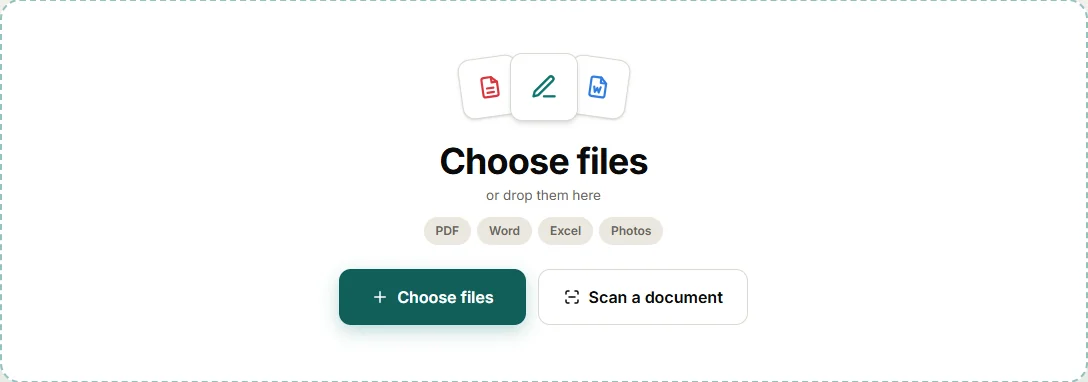
Press Scan a document
Open EditFlip in your phone’s browser and press Scan a document on the home page. On a computer without a camera, you choose photos of the pages instead.
- Step 2
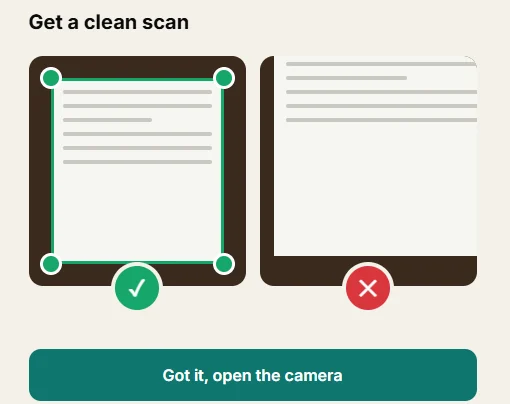
Get the whole page in view
A short tip shows what works: the whole page with its four corners in view, on a darker surface. Hold the phone still over the page and it is taken by itself.
- Step 3
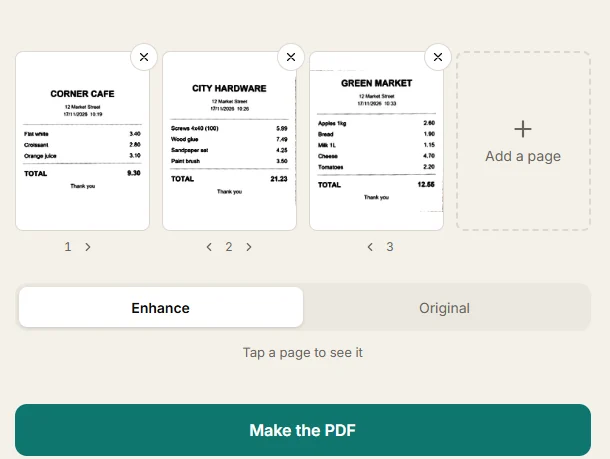
Check the pages
Each page comes out cropped and straightened. Choose Enhance for clean black and white text, or Original for the colours as they are. Tap a page to crop or turn it, use the arrows to change the order, and Add a page for more.
- Step 4
Make the PDF
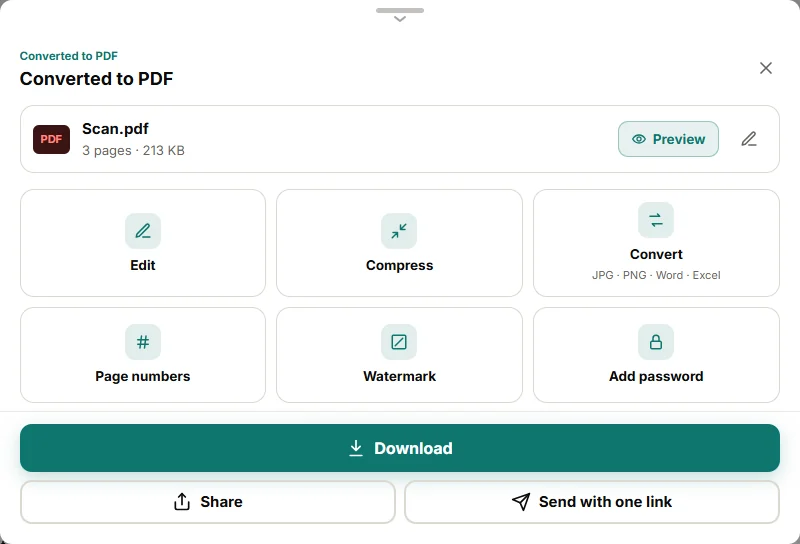
Press Make the PDF. Scan.pdf is ready with all the pages. Download it, Share it, or go on with Compress, Page numbers or Add password.
What makes a scan sharp
Light first. Daylight from a window or a ceiling light behind you works best. Your own shadow over the page or the flash reflecting off glossy paper are the usual problems.
Then contrast. A white page on a dark table is easy to find. On a white desk, the scanner has to guess where the paper ends.
All four corners in view
The scanner finds the page by its edges. If a corner is out of the picture, it cannot straighten the page properly, and a strip of text may be lost.
Hold the phone flat, right above the middle of the page, a little higher than feels natural. The page gets cropped afterwards, so a bit of table around it is fine.
Enhance or Original
Enhance cleans the page up: whiter paper, darker text, shadows softened. It is the right choice for letters, forms and receipts.
Original keeps the colours as the camera saw them, which suits photos, coloured diagrams or a document where a coloured stamp matters.
On an iPhone: Notes or Files
iPhones have a scanner built into Notes and Files. Apple’s steps in Files are to tap the More button, tap Scan Documents, and point the camera at the document. In Auto mode it scans by itself, then you drag the corners to fit the page and tap Keep Scan.
In Notes you can also sign the scan straight away with Markup.
On Android: Google Drive
The Google Drive app can scan too. Google’s steps are to open Drive, tap Camera at the bottom right and point the phone at the document. A blue line outlines the document to show where it will be cropped.
Google says the scans are saved as searchable PDFs on your Google Drive, and you can choose .pdf or .jpg when you save.
Before you send it
Look at each page at full size, not just the thumbnails. Small print and signatures show whether the scan is sharp enough.
A scan with many pages can be large. If the email bounces, press Compress on the result before you send it.
Your phone’s camera, straight clean pages, one PDF. Free, no app to install, and the scans stay on your device.
Scan a document on EditFlip →Questions
How do I scan a document with my phone for free?
Open EditFlip in your phone’s browser, press Scan a document, hold the phone over each page, then press Make the PDF.
Do I need to install an app?
No. EditFlip scans in the browser. iPhones also have a scanner in Notes and Files, and Android in Google Drive.
Can I scan several pages into one PDF?
Yes. Add a page for each sheet, put them in order with the arrows, then make one PDF.
Are my scans uploaded?
No. EditFlip makes the PDF inside your browser, so the pages stay on your phone.