

In short
- Choose the photos, drag them into order, press Make the PDF.
- Each photo gets a page of its own, and keeps its full quality.
- Make one PDF from your photos for free
Expense receipts for the accountant. Photos of a signed form, page by page. The pages of a school assignment written by hand. Sending ten separate pictures is messy, and many forms only take one file, so you need them as a single PDF.
Turning photos into a PDF takes a minute. This guide shows how to choose them, set the order, and what the PDF will look like, plus a tip for when the pages are still on paper.
On EditFlip, step by step
- Step 1
Choose your photos
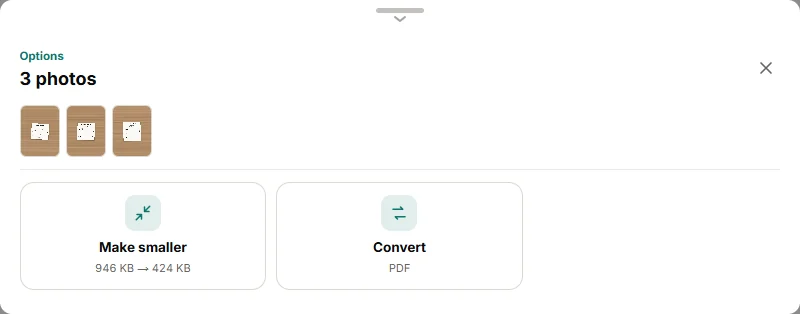
On the EditFlip home page, press Choose files and pick all the photos at once, or drop them on the page. The panel shows how many you picked, with Make smaller and Convert.
- Step 2
Press Convert and set the order
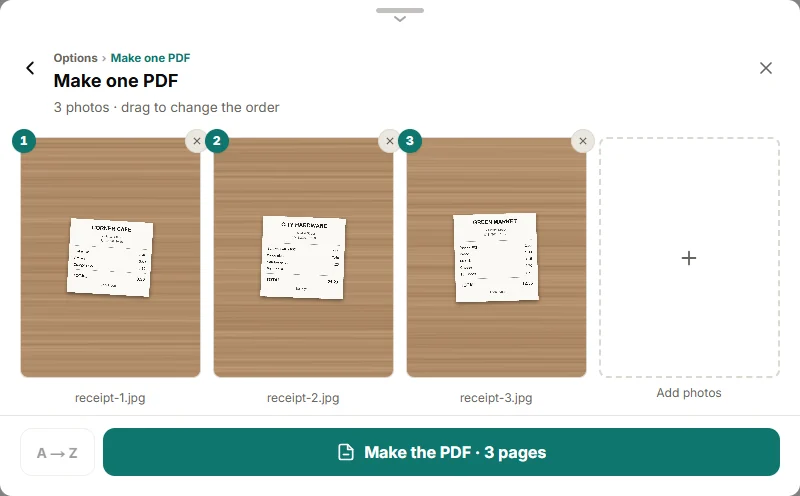
Press Convert. Make one PDF shows every photo with its number. Drag a photo to move it, press A → Z to sort them by name, the cross to drop one, or Add photos for more.
- Step 3
Make the PDF and download it
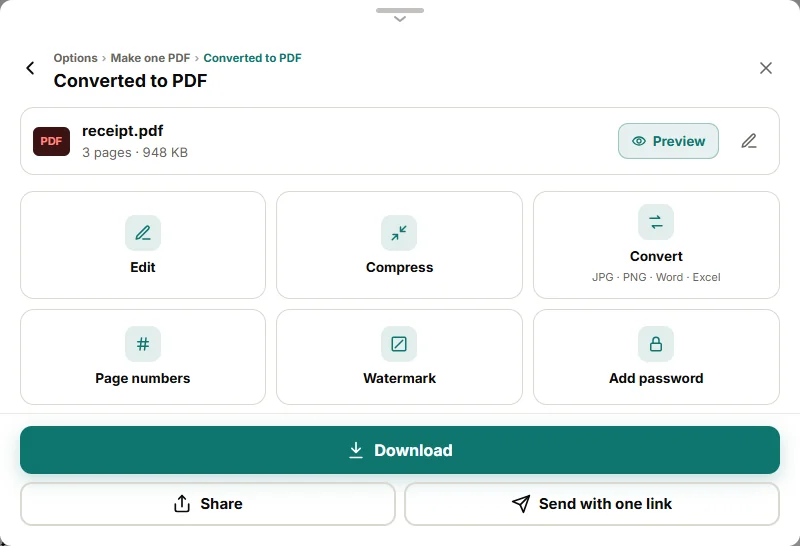
Press Make the PDF. You get one PDF with a page for each photo. Press Download, or Share on a phone, and the next steps like Compress or Page numbers are right there.
What the PDF looks like
Every photo gets a page of its own, and the page is the size of the photo itself. A photo wider than it is tall makes a wide page, a tall one makes a tall page, so nothing sits small in the middle.
The photo fills its page edge to edge, with no white border, and is never stretched or cropped. A small photo is not blown up either, so it stays as sharp as it was.
Quality and file size
EditFlip puts a JPG into the PDF as it is, without saving it again. Only a photo the phone marked as turned is turned and saved once more, at high quality. The pages are as sharp as your photos, and the PDF is about as big as the photos together.
If the PDF has to be small, for an email or an upload form, press Compress on the result. Or press Make smaller on the photos before you convert, which is the same thing done first.
Getting the order right
The photos start in the order you chose them. For receipts or pages taken one after the other, A → Z is often the quickest fix, because phone photos are named by the time they were taken.
Check the numbers on the photos before you make the PDF. Moving a page later means opening the PDF in the editor, so getting it right here saves a step.
Photos and PDFs together
You can mix PDFs and photos in the same file. Choose them together, and the PDF’s pages and the photos go into one document in the order you set.
That is useful for a form you filled in as a PDF plus photos of the documents you have to attach.
If the pages are still on paper
Photos taken on a table at an angle look like photos: a bit of the table, a shadow, a tilted page. For documents, scanning is better.
An iPhone can do it in Notes or Files with Scan Documents. Apple’s steps say you can drag the corners to fit the page, then tap Keep Scan. EditFlip has Scan a document on its home page too, which straightens each page and puts them in one PDF.
Before you send it
Open the PDF and flip through every page. Look for a photo that is upside down or sideways, which is easy to miss in small thumbnails.
If one is wrong, open the PDF with Edit, go to Pages, choose that page and press Rotate.
Many photos into one PDF, in the order you choose, at full quality. Free, no account, and your photos stay on your device.
Make a PDF from photos on EditFlip →Questions
How do I combine several JPGs into one PDF?
Choose all the photos at once on EditFlip, press Convert, set the order in Make one PDF, then press Make the PDF.
Will the photos lose quality?
No. A JPG goes into the PDF as it is, without being saved again, unless it has to be turned the right way up.
Can I change the order of the pages?
Yes. Drag the photos before you make the PDF, or sort them by name with A → Z.
Does it work on a phone?
Yes. Open EditFlip in your phone’s browser, choose the photos from your gallery and make the PDF there.