
In short
- Choose all the PDFs, drag them into order, press Merge.
- The pages are copied as they are, nothing is re-typed or blurred.
- Merge your PDFs for free
A visa application that wants one file. Monthly invoices for the accountant. A contract, its annex and a signed page that came back separately. Forms and inboxes are much happier with one PDF than with five.
Merging puts the pages of several PDFs one after the other in a new file. This guide shows how to do it in the right order, how photos fit in, and what to check before you send it.
On EditFlip, step by step
- Step 1
Choose all the PDFs
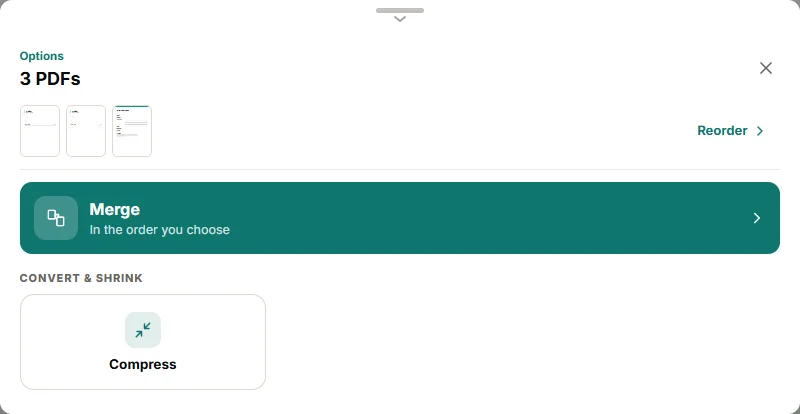
On the EditFlip home page, press Choose files and pick every PDF at once, or drop them on the page. With several PDFs, the big button in the panel is Merge.
- Step 2
Put them in order
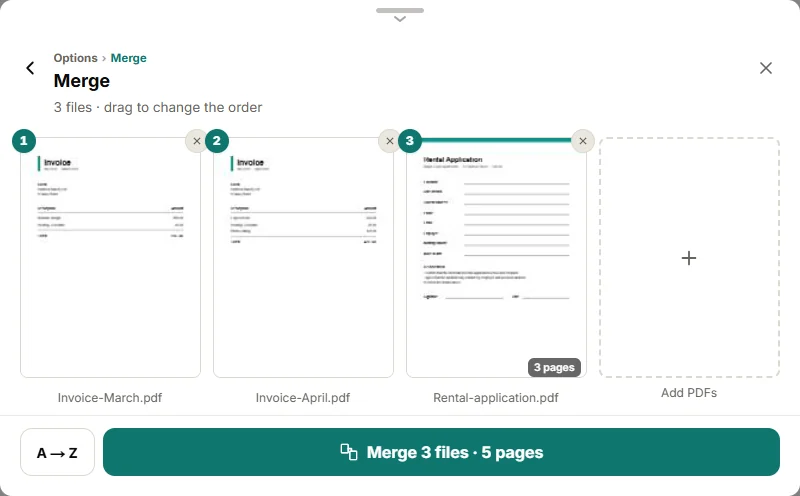
Press Merge. Every file shows with its number and its page count. Drag a file to move it, press A → Z to sort by name, the cross to drop one, or Add PDFs for more. The button says how many pages the result will have.
- Step 3
Merge and download
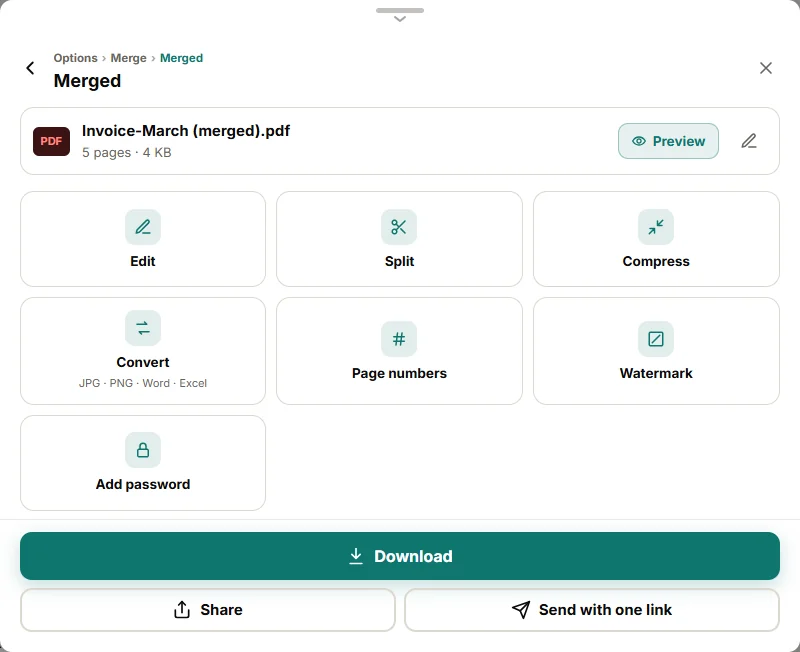
Press Merge. The new PDF is named after the first file with “(merged)” at the end. Press Download, or go on with Compress, Page numbers or Add password.
What merging keeps
Each page is copied from its PDF into the new one as it is. Text stays text you can select and search, images keep their quality, and page sizes stay as they were, so an A4 letter and a US Letter form can sit in the same file.
Merging does not compress. The result is about as big as the files together. If it is too big to email, press Compress on the result.
Getting the order right
The files start in the order you chose them. Check the numbers on them before you press Merge, especially when the names do not say much.
Naming files with a number or a date at the start, like “01 Contract” or “2026-03 Invoice”, lets A → Z do the sorting for you.
Photos in the same PDF
A PDF can take photos as pages too. Choose the photos together with the PDFs, and each photo gets an A4 page of its own, turned sideways when the photo is wide.
That is useful for a form plus photos of the documents it asks for, all in one file.
On a Mac: Preview
Preview can combine PDFs by dragging thumbnails. Apple’s steps are to open the PDFs, choose View > Thumbnails in each, then drag the thumbnails from one sidebar to the other. To add a whole PDF, drag its icon from the Finder to the sidebar.
Apple warns that changes you make in Preview are saved automatically, and suggests File > Duplicate to keep the originals. EditFlip always makes a new file and leaves yours as they are.
Locked PDFs
A PDF that asks for a password cannot be merged until it is opened. Remove its password first, then merge.
A PDF that only blocks printing or copying is opened without those limits, so it merges like any other.
Before you send it
Open the merged PDF and look at the first and last page of each original. That is where a wrong order shows.
For a long file that people will read or print, add page numbers to the merged PDF, so they run from start to finish.
PDFs and photos into one file, in the order you choose, pages kept as they are. Free, no account, and your files stay on your device.
Merge PDFs on EditFlip →Questions
How do I merge PDF files into one?
Choose all the PDFs on EditFlip, press Merge, drag them into order, then press Merge again.
Can I change the order of the files?
Yes. Drag them before you merge, or press A → Z to sort them by name.
Can I merge PDFs and JPGs together?
Yes. Choose them together and each photo becomes a page of its own.
Are my files uploaded?
No. EditFlip merges them inside your browser, so they never leave your device.