
In short
- Every page of the PDF becomes one JPG picture.
- Pick PNG instead when the page is mostly small text or a diagram.
- Convert your PDF to JPG for free
Some places do not take PDFs. A form that only accepts pictures, a social post, a slide where you want one page of a report, a chat where a picture opens straight away and a PDF has to be downloaded first.
Converting turns each page into an image file. This guide shows how to do it in your browser, how sharp the pictures will be, and when PNG is the better choice than JPG.
On EditFlip, step by step
- Step 1
Choose the PDF
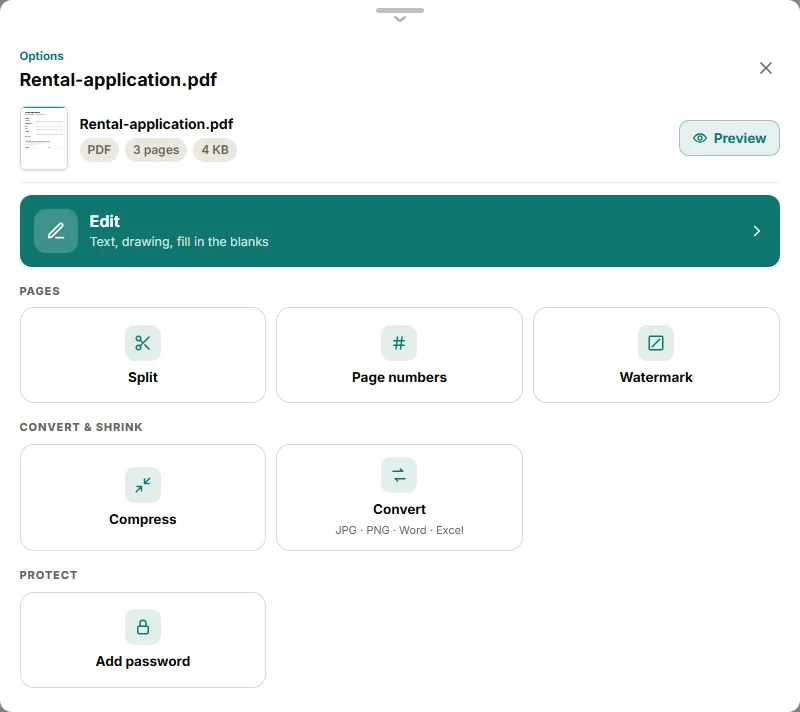
On the EditFlip home page, press Choose files and pick your PDF, or drop it on the page. The panel with what you can do with it opens.
- Step 2
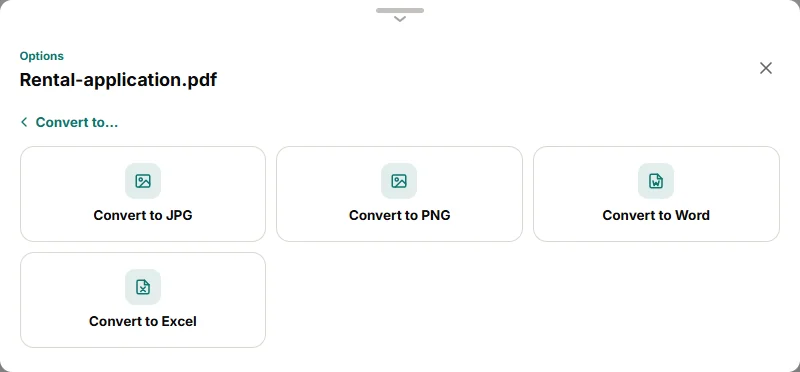
Press Convert, then Convert to JPG
Press Convert and pick Convert to JPG. Convert to PNG sits next to it if you want sharper text and do not mind a bigger file.
- Step 3
Download the pictures
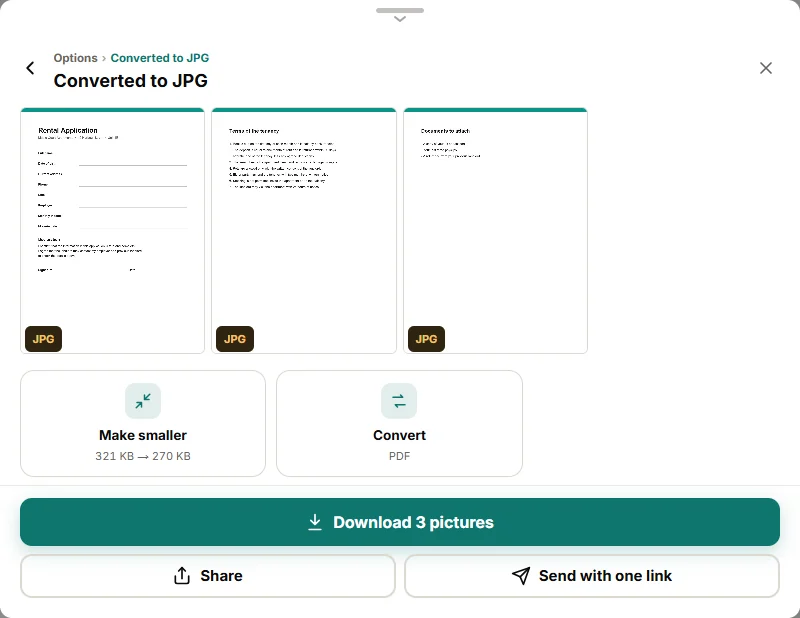
Every page appears as a picture. Press Download to save them. A one page PDF gives you one JPG, and several pages come together in one ZIP file.
One page, one picture
A PDF can hold many pages, but a JPG is always a single image. So converting a ten page PDF gives you ten pictures, each named after the PDF with “page 1”, “page 2” and so on at the end.
If you only need one page, convert and keep the one you need, or delete the other pages from the PDF first so you only get the picture you want.
How sharp the pictures are
EditFlip draws each page at about 200 dots per inch, with the longest side up to 2,400 pixels. That is sharp enough to read normal text on a phone or a screen, and to print the page at its own size.
The pictures are saved as good quality JPGs. If one is too big for where you are sending it, press Make smaller under the result to shrink them in the same step.
JPG or PNG
JPG is made for photos. It keeps files small, but around fine black lines, like small print or a chart, it can leave a faint blur.
PNG keeps every edge crisp, which suits pages full of text, tables and diagrams. The file is bigger. If the page is a photo or a colourful flyer, JPG is the better choice.
On a Mac: Preview
Preview can also save a PDF as a picture. Apple’s steps are to open the PDF, choose File > Export, then pick a type from the Format pop-up menu.
For a long PDF where you want every page as its own file, a converter that does all pages at once saves a lot of clicking.
A screenshot is not the same
Taking a screenshot of a page works in a hurry, but the picture is only as sharp as your screen, and it often catches bits of the window around the page.
A conversion draws the page itself, edge to edge, at a fixed sharpness, so every page comes out the same size.
Going the other way
Pictures can go back into a PDF too. EditFlip’s Convert button on the result offers PDF, which puts the pictures together as pages of one document.
That is handy when you converted to edit or crop a page as a picture and need a PDF again at the end.
Every page as a sharp JPG or PNG, several pages in one ZIP. Free, no account, and your PDF stays on your device.
Convert PDF to JPG on EditFlip →Questions
How do I convert only one page of a PDF to JPG?
Convert the PDF and keep the picture of the page you need. Or delete the other pages first, then convert.
Why did I get a ZIP file?
Your PDF has several pages, so there are several pictures. They are packed in one ZIP so they download together.
Is the quality good enough to print?
Yes for most documents. Pages are drawn at about 200 dpi, which prints clearly at the page’s own size.
Is my PDF uploaded?
No. EditFlip turns the pages into pictures inside your browser, so nothing leaves your device.