
In short
- PDF to Word turns the text into paragraphs you can rewrite.
- Sizes, bold and italics usually come through, complex layouts less so.
- Convert your PDF to Word for free
You need to change more than a word or two. A CV you only have as a PDF, a contract to reuse for a new client, a report someone sent you that now needs a new chapter. Rewriting whole paragraphs inside a PDF is slow, so you want the text back in Word.
Converting gives you a .docx file where the text flows again: you can type, delete and move paragraphs like in any document. This guide shows how to do it, what to expect from the result, and what to do with scanned pages.
On EditFlip, step by step
- Step 1
Choose the PDF
On the EditFlip home page, press Choose files and pick your PDF, or drop it on the page. The panel with everything you can do with the file opens.
- Step 2
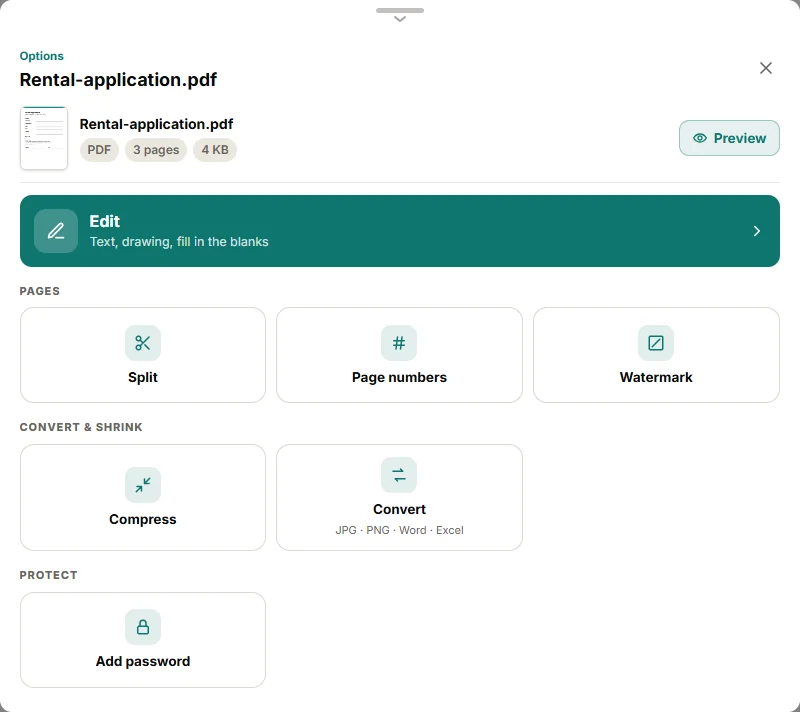
Press Convert, then Convert to Word
In the panel, press Convert. You get the formats a PDF can become: JPG, PNG, Word and Excel. Pick Convert to Word.
- Step 3
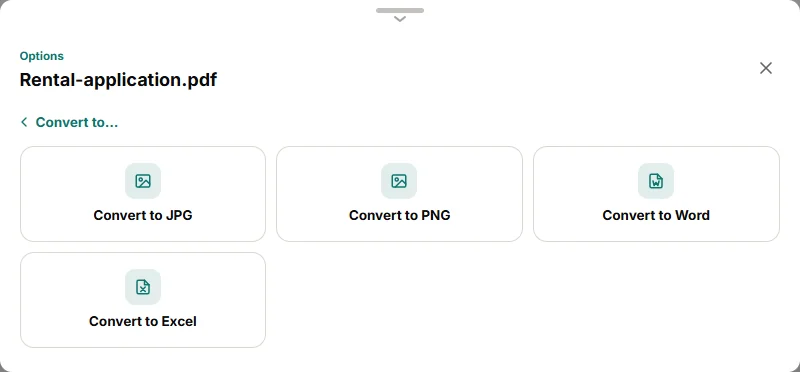
Download the .docx
In a few seconds the Word file is ready, with the same name as the PDF. A short note under it reminds you what is kept. Press Download, or Share on a phone.
- Step 4
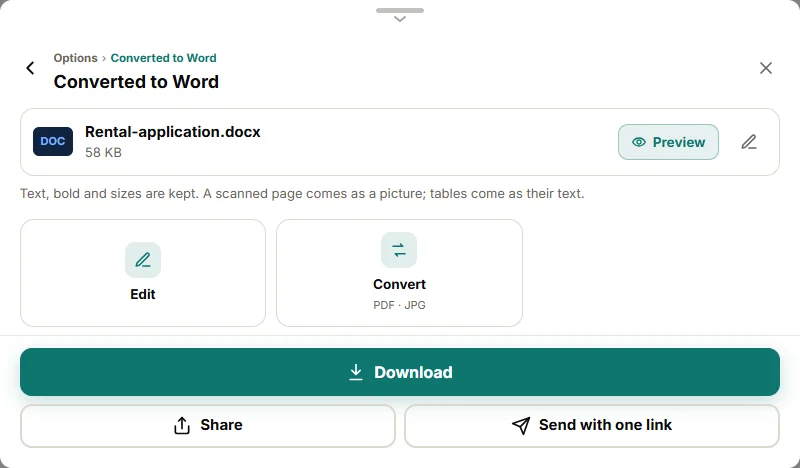
Edit it right away, if you like
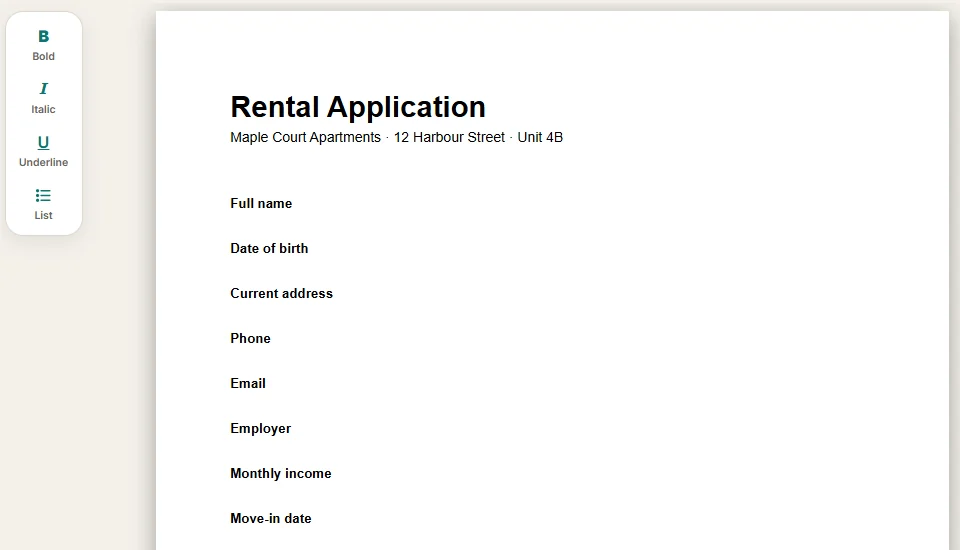
Press Edit to open the new document in EditFlip and change the text there, with bold, italics, underline and lists. Or open the .docx in Word or Google Docs.
What a converter can and cannot bring back
A PDF does not store paragraphs. It stores where each piece of text sits on the page. Microsoft puts it plainly: a PDF stores the location of text, pictures and graphics, but not necessarily the relationships among them, so a table is just a set of lines with text near them.
Every converter has to guess the structure back. Plain documents like letters, CVs, contracts and reports come out well. Pages with columns, text boxes and many small pieces are harder, and need a look afterwards.
What EditFlip keeps
Each page’s text comes as paragraphs, with its sizes, bold and italics, and where it stands on the line. Tables come as their text, so the words are there but not the grid.
Lines, drawings, signatures and highlights are not text. EditFlip puts them on one picture of the page behind the text, where they were, so the page keeps its look while the words stay editable.
Scanned PDFs come as pictures
A scan is a photo of a page. There is no text inside it to convert, so EditFlip brings that page into Word as a picture.
To get editable text from a scan you need text recognition, often called OCR. Google Drive can do it: open the PDF with Google Docs. Google says the file should be 2 MB or smaller for the best results, that bold, italics and font size are likely kept, and that lists, tables and columns are not likely to be detected.
Opening the PDF in Word
Microsoft Word can open a PDF directly. Word makes a copy and converts it to a Word document, and Microsoft says it works best with files that are mostly text, such as business, legal or scientific documents.
Microsoft also lists what tends not to convert well: tables with cell spacing, page colours and borders, footnotes that span more than one page, endnotes and PDF comments. If your document has these, expect to tidy the result.
When you do not need Word at all
If you only need to fix a date, a name or a line, you do not have to convert. Editing the PDF directly keeps it exactly as it was everywhere else.
Convert when you are going to rewrite a lot, reuse the text in a new document, or hand it to someone who works in Word.
Check the result
Scroll through the whole document once. Look at headings, numbered lists and anything that was in a table, since those are where a conversion is most likely to slip.
When you are done editing, you can turn the document back into a PDF. EditFlip does that too, from the same Convert button.
The text of your PDF in a .docx you can change, with sizes and bold kept. Free, no account, and the file never leaves your device.
Convert PDF to Word on EditFlip →Questions
Is PDF to Word free on EditFlip?
Yes. There is no account to make and nothing to install.
Why is a page a picture in my Word file?
That page is a scan, so it has no text inside it. Use text recognition, such as opening the PDF with Google Docs, to get the words.
Are tables kept?
Their text is kept, but not the grid. You can rebuild the table in Word around the text.
Is my PDF uploaded?
No. EditFlip converts it inside your browser, and the PDF and the Word file stay on your device.