
In short
- A PDF looks the same everywhere. A Word file can shift on another computer.
- No Word? Convert the .docx in your browser in a few seconds.
- Convert Word to PDF for free
CVs, cover letters, invoices and forms are usually written in Word and sent as PDF. A PDF keeps its layout on any device, and the person receiving it cannot change it by accident.
If you have Word, saving as PDF is built in. If you do not, on a borrowed computer, a phone or a Chromebook, you can still do it in your browser. This guide shows both, and what to check before you send it.
On EditFlip, step by step
- Step 1
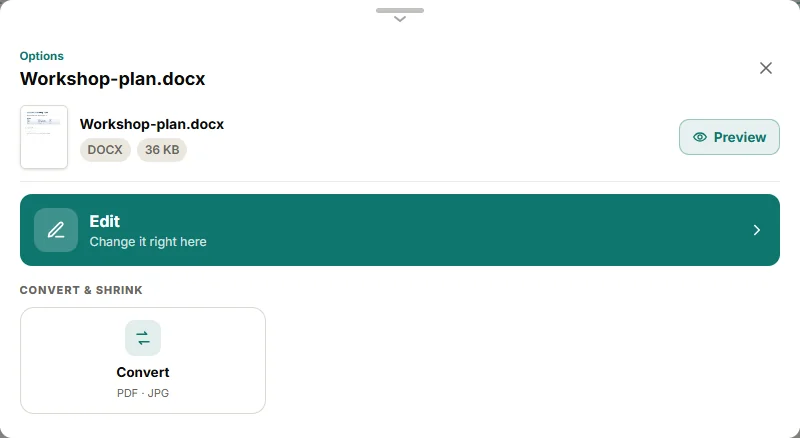
Choose the Word document
On the EditFlip home page, press Choose files and pick the .docx file. The panel offers Edit, to change the text first, and Convert.
- Step 2
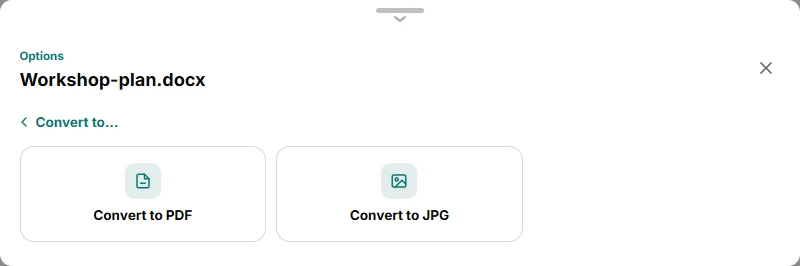
Press Convert, then Convert to PDF
Press Convert and pick Convert to PDF. Convert to JPG is there too, if you want the pages as pictures.
- Step 3
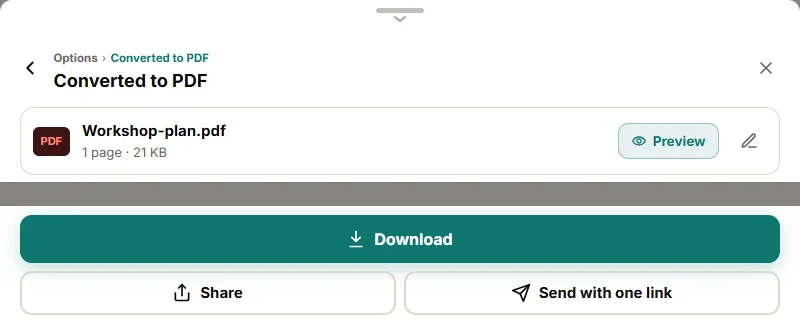
Download the PDF
In a few seconds the PDF is ready, with the same name. Press Download, or go on with Page numbers, Watermark or Add password.
- Step 4
Check it with Preview
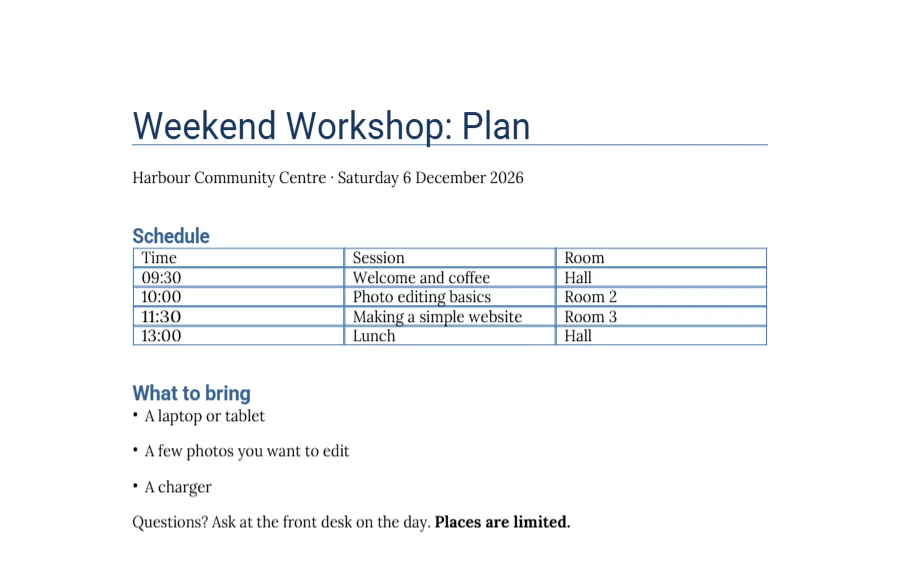
Press Preview to see the pages before you send them: headings, tables, lists and bold text come through, and the text in the PDF can still be selected and searched.
Why send a PDF and not the Word file
A Word document is laid out by whoever opens it. Another version of Word, a missing font or a phone app can move lines, push a table onto the next page, or change the look.
A PDF fixes the layout. It opens the same way everywhere, which is what you want for a CV, an invoice or anything official.
In Word: Save As or Save a Copy
Word can save a PDF itself. Microsoft’s steps are to select File, then Save As, or Save a Copy if the file was saved before, choose PDF in the drop-down list and select Save.
Under More Options, Word can also make a PDF of only some pages, include bookmarks made from your headings, and add tags that help screen-reading software.
What EditFlip keeps
EditFlip lays out the document the way its viewer shows it and writes that into a PDF: text as real text, with fills, borders, tables, lists and pictures.
It uses its own set of fonts, so a document written in an unusual font may look slightly different. For a design where the exact font matters, Word’s own Save As PDF matches it best.
.docx, not .doc
EditFlip converts .docx files, the format Word has used for years. Very old .doc files need to be saved as .docx first, in Word or another word processor.
If you only have the .doc, opening it and saving it again as .docx takes a moment and usually changes nothing visible.
Before you send it
Open the PDF and look at every page. Check that tables did not split in an awkward place and that nothing ran off the page.
Give the file a clear name, like “Jane Smith CV.pdf”, rather than “Document1.pdf”. The pencil next to the name renames it before you download.
A .docx to PDF in your browser, no Word needed, on a computer or a phone. Free, no account, and your document stays on your device.
Convert Word to PDF on EditFlip →Questions
How do I convert Word to PDF without Word?
Open the .docx on EditFlip, press Convert, then Convert to PDF, and download it.
Will the PDF look the same as my document?
Headings, tables, lists and bold text come through. Unusual fonts may be replaced by a close one.
Can I convert a .doc file?
Not directly. Save it as .docx first, then convert it.
Is my document uploaded?
No. EditFlip converts it inside your browser, so it stays on your device.