
In short
- Columns get cut off when the sheet is wider than the paper.
- EditFlip shrinks wide sheets to the page width and turns the page sideways.
- Convert Excel to PDF for free
You save a spreadsheet as PDF and the last three columns land on a second page, or vanish. A budget, a timetable, a price list: anything with more columns than an A4 page is wide enough to hold.
The fix is to scale the sheet to the page before it becomes a PDF. This guide shows the quick way in your browser, how to do it in Excel itself, and what to check so the result is still readable.
On EditFlip, step by step
- Step 1
Choose the spreadsheet
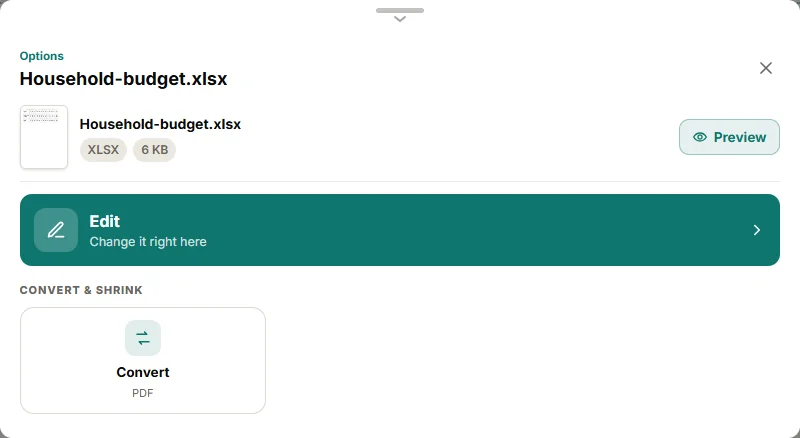
On the EditFlip home page, press Choose files and pick the .xlsx, .xls or .csv file. The panel offers Edit, to change cells first, and Convert.
- Step 2
Press Convert
Convert turns it into a PDF in a few seconds. Every sheet of the workbook is included, each with its name on top when there are several.
- Step 3
Check the preview and download
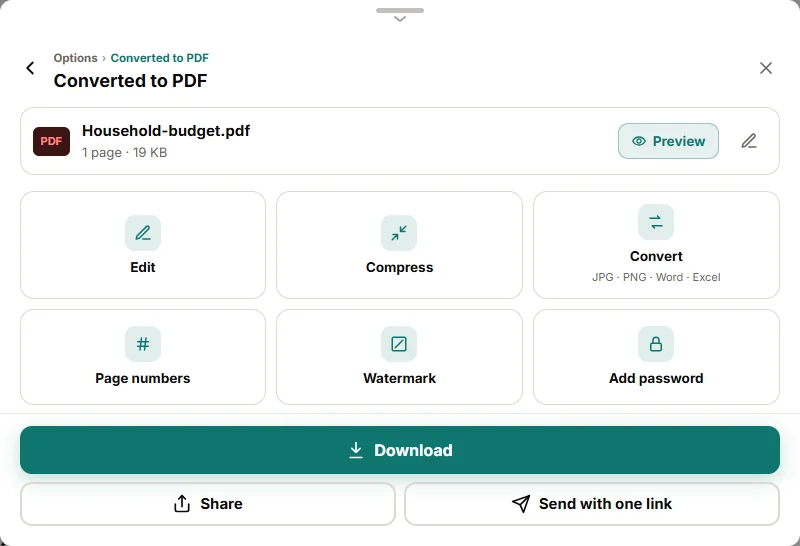
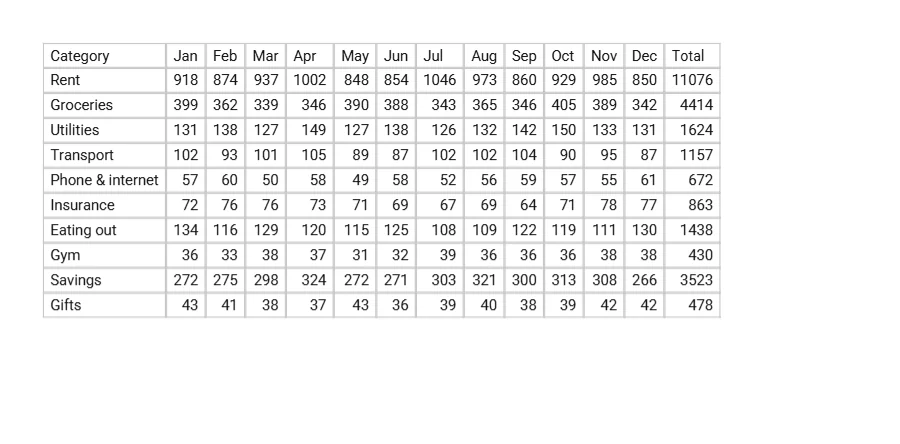
Press Preview to see the pages. Wide tables are made smaller to fit the width of the page, and a very wide one gets a page turned sideways. Press Download.
Why columns get cut off
A spreadsheet has no pages. Excel only splits it into pages when it prints or saves a PDF, and by default it keeps the text at full size, so columns that do not fit go to another page.
Rows are less of a problem, because pages are read top to bottom. A table that runs onto a second page in length is normal. A table split in width is hard to read.
What EditFlip does with a wide sheet
EditFlip lays out each sheet as a table with thin lines, on A4 pages. When the table is wider than the page, it is made smaller to fit the width. When it is much wider than tall, the page is turned sideways to give it more room.
Rows are never cut in half between pages. The text in the PDF stays text, so it can be selected and searched.
In Excel: Fit to
Excel can do the same before you save. Microsoft’s steps are to open the Page Setup launcher on the Page Layout tab, select the Page tab, and under Scaling choose Fit to, then set 1 page wide by 1 tall.
Microsoft notes that Excel shrinks your data to fit the number of pages you choose. Setting 1 page wide and leaving the height free keeps the columns together while long sheets run onto more pages.
Keeping it readable
Shrinking has a limit. A sheet with forty columns fitted on one A4 page has text too small to read. If the PDF needs a magnifying glass, remove the columns nobody needs before converting.
Hidden helper columns, notes and old data are the usual suspects. Use Edit on EditFlip, or Excel, to tidy the sheet first.
Several sheets in one PDF
A workbook with several sheets becomes one PDF with all of them, each starting with its name so readers know which sheet they are looking at.
If you only want one sheet, copy it to its own file first, or delete the pages you do not need from the PDF afterwards.
Every sheet into a PDF, wide tables fitted to the page width. Free, no account, and your spreadsheet stays on your device.
Convert Excel to PDF on EditFlip →Questions
How do I convert Excel to PDF on one page?
On EditFlip, choose the file and press Convert: wide sheets are fitted to the page width. In Excel, use Page Setup, Fit to, 1 page wide by 1 tall.
Why are my columns on a second page?
The sheet is wider than the paper and Excel keeps the text at full size. Scaling to the page width keeps the columns together.
Does it include every sheet?
Yes. Every sheet of the workbook goes into the PDF, each with its name on top when there are several.
Is my spreadsheet uploaded?
No. EditFlip converts it inside your browser, so it never leaves your device.