
In short
- Auto finds what is in front and takes the background away.
- Keep and Erase brushes fix any edge it got wrong.
- Remove a background for free
A product photo for an online shop that needs a clean white background. A profile picture without the messy room behind you. A logo or signature to put on a document. Cutting things out used to mean careful work in photo software.
Now it takes a tap. This guide shows how to remove a background in your browser, how to fix the edges, and why the result is saved as a PNG.
On EditFlip, step by step
- Step 1
Choose the photo
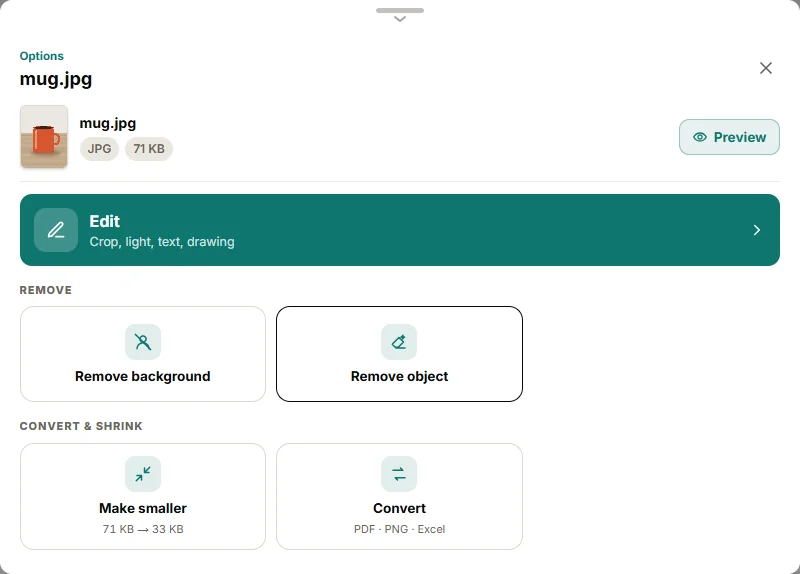
On the EditFlip home page, press Choose files and pick the photo. In the panel, Remove background is under Remove.
- Step 2
Let Auto cut it out, then fix the edges
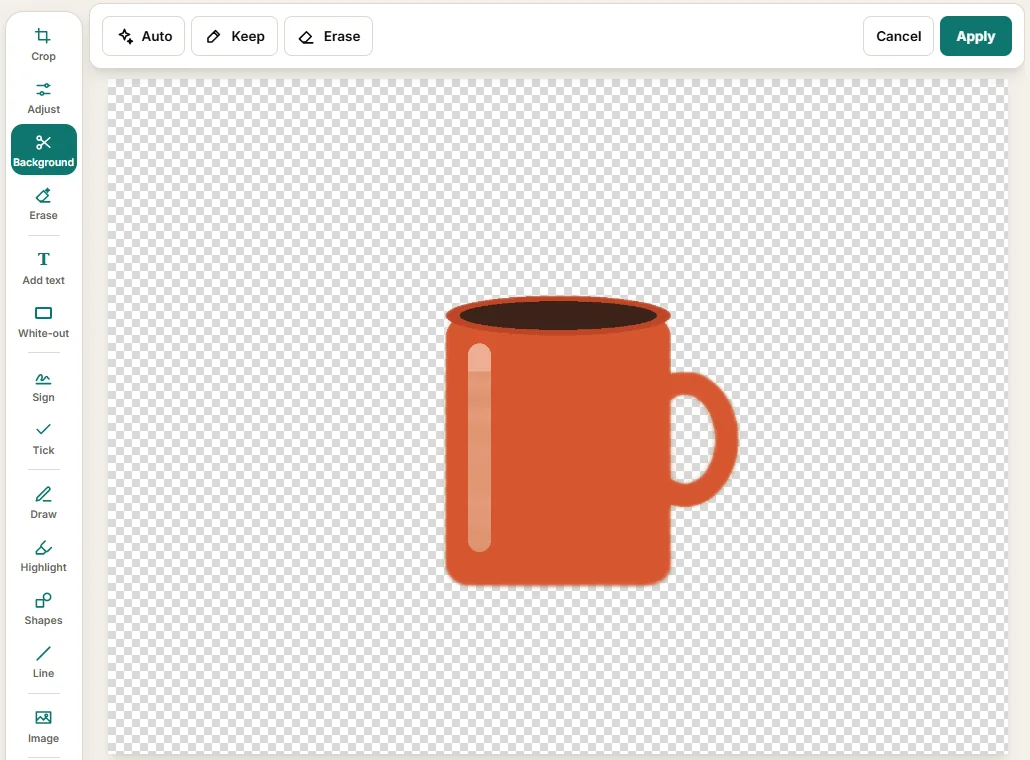
The photo opens with the background already taken away, shown as a checkerboard. If something is missing, paint it back with Keep. If a bit of background stayed, paint it away with Erase. Press Apply when it looks right.
- Step 3
Press Done and download
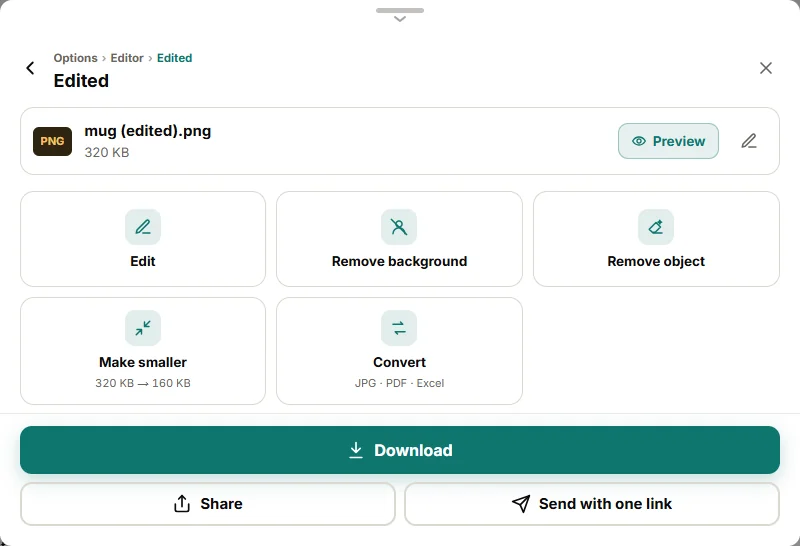
Press Done. The photo is saved as a PNG, which keeps the see-through background. Press Download, or go on with Make smaller or Convert.
How Auto finds the subject
EditFlip uses a small AI model that looks at the whole photo and decides what is in front. It runs inside your browser, so the photo is never uploaded, and it usually takes about a second.
It works best when the subject stands out: a person, a product or an object with a clear edge against the background behind it.
Fixing the edges
No automatic cut-out is perfect every time. Fine details like hair, fur or thin straps are the hardest, and a subject that is the same colour as the background can lose a piece.
Keep and Erase are brushes. Zoom in, paint over the part that should stay or go, and the cut-out follows. Undo takes back a stroke that went too far.
Why the result is a PNG
A JPG cannot be see-through. Every pixel has a colour, so a removed background would turn white or black. PNG keeps the empty parts empty.
That is what lets you put the cut-out on any colour, in a document or on a website. If you need a JPG with a white background, use Convert on the result.
On a Mac: Preview
Preview on a Mac can remove a background too, with a button in the Markup toolbar. Apple notes that you may be asked to convert the image to a PNG, and suggests File > Duplicate first if you want to keep the original.
Preview can also extract part of an image by tracing its edge by hand, which suits shapes the automatic cut-out gets wrong.
Tips for a clean cut-out
Take the photo against a plain background with some distance behind the subject. Good, even light helps more than anything else.
Avoid shadows that touch the subject, and keep the whole subject in the frame. A cut-off hand or edge makes the result look cropped.
Automatic cut-out, brushes to fix the edges, a see-through PNG. Free, no account, and your photo never leaves your device.
Remove a background on EditFlip →Questions
How do I remove the background from a photo for free?
Open it on EditFlip and press Remove background. Auto cuts it out, then press Apply and Done to download a PNG.
Why is my result a PNG?
PNG keeps the background see-through. A JPG would fill it with a colour.
It cut off part of my subject. Can I fix it?
Yes. Paint the missing part back with Keep, or remove leftover background with Erase, then press Apply.
Is my photo uploaded?
No. The background is removed by a model that runs in your browser, so the photo stays on your device.