

In short
- Forms limit the file size in KB, not the photo’s width.
- Pick the limit you need and the photo is made to fit under it.
- Make your photo smaller for free
“The file must be under 200 KB.” Job applications, visa forms, school portals and exam registrations all say it, and a phone photo is easily 3 or 4 MB, twenty times too big.
You do not need photo software for this. This guide shows how to bring a photo under a size limit in your browser, why it works, and how to keep it looking sharp at 100 KB.
On EditFlip, step by step
- Step 1
Choose the photo
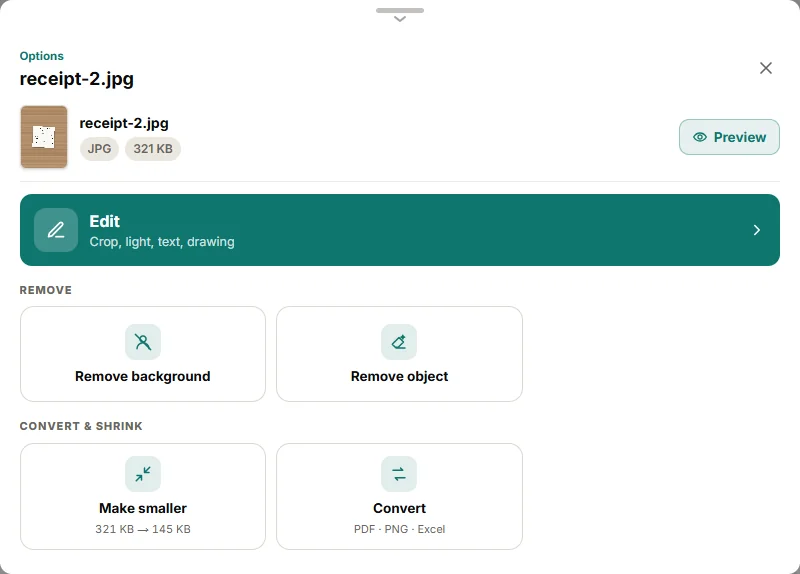
On the EditFlip home page, press Choose files and pick the photo. JPG, PNG and iPhone HEIC photos all work. The Make smaller tile already shows how big the photo will get.
- Step 2
Press Make smaller
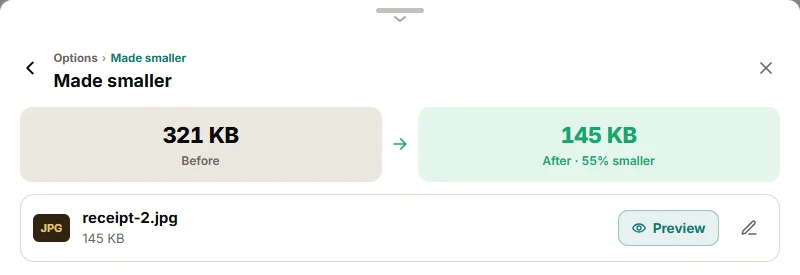
In one tap the photo is made smaller: at most 2,560 pixels on the long side, saved as a JPEG. That alone usually takes a phone photo from megabytes to a few hundred KB.
- Step 3
Need a limit? Press Make smaller again
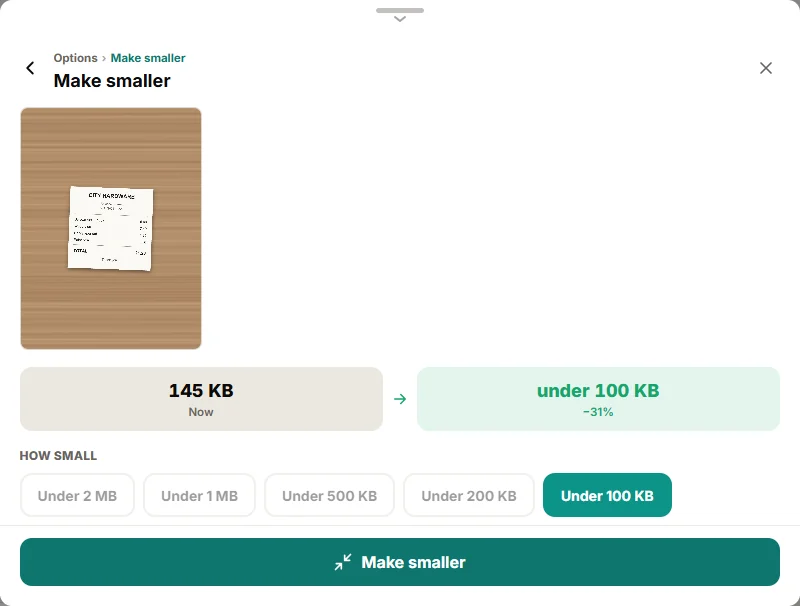
On the result, press Make smaller once more and choose How small: under 2 MB, 1 MB, 500 KB, 200 KB or 100 KB. The card shows the size now and the target.
- Step 4
Download the photo
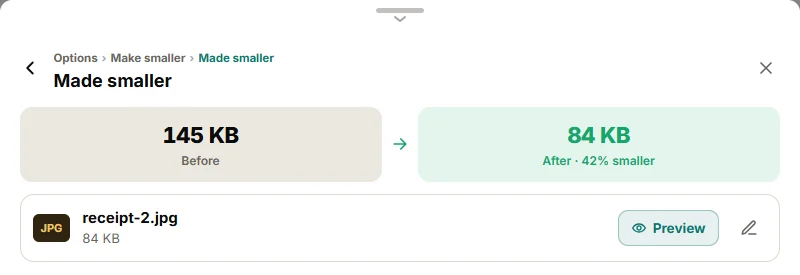
The photo comes back under your limit, here 84 KB for a 100 KB form. Press Download, or Share on a phone, and upload it to the form.
KB, MB and pixels
A form’s limit is about the file: how many kilobytes or megabytes it takes. 1 MB is about 1,000 KB. A modern phone photo is often between 2 and 5 MB.
The file size depends on two things: how many pixels the photo has, and how strongly it is compressed. Making either one smaller makes the file smaller.
How EditFlip gets under the limit
To reach a size like 200 KB, EditFlip lowers the JPEG quality a little at a time first, and only then reduces the pixels, until the photo fits. That order keeps as much detail as the limit allows.
A photo with see-through parts, like a logo on a clear background, stays a PNG and only gets fewer pixels, so the see-through parts are kept.
Location and camera details removed
Phone photos carry hidden details, like where and when they were taken. When EditFlip makes a photo smaller, it saves it without them, and turned the right way up.
That is a good thing for a photo you upload to a form: it shares the picture, not your location.
On a Mac: Preview
Preview can make a photo smaller too. Apple’s steps are to choose Tools > Adjust Size, select Resample image and enter a smaller value in the Resolution field. Apple says the new size is shown at the bottom.
Preview shows the size as you go, but finding the exact setting for “under 200 KB” can take a few tries.
Keeping it sharp
For a passport style photo or a document, crop away what the form does not need before shrinking. Fewer pixels of background leaves more of the limit for the face or the text.
If the form also says a minimum width or height in pixels, check it after shrinking. Very small limits like 50 KB may need a crop to meet both.
Several photos at once
Choose several photos together and Make smaller works on all of them in one go. Each comes back smaller, with the total saved shown on the card.
That is handy for a form that wants several documents, or for photos to email in one message.
Under 1 MB, 500 KB, 200 KB or 100 KB in a tap, for JPG, PNG and HEIC. Free, no account, and your photos stay on your device.
Make a photo smaller on EditFlip →Questions
How do I reduce a photo to under 200 KB?
Open it on EditFlip, press Make smaller, then Make smaller again and choose Under 200 KB.
Will the photo look blurry?
At 200 KB or more, photos usually look sharp on screen. EditFlip lowers the quality before the pixels, which keeps detail.
Does it work with iPhone photos?
Yes. HEIC photos from an iPhone are opened and saved as a smaller JPG.
Are my photos uploaded?
No. EditFlip makes them smaller inside your browser, so they never leave your device.