
In short
- Type a password twice and download: the PDF asks for it to open.
- Send the password a different way than the file, never in the same email.
- Lock your PDF with a password for free
Payslips, a contract with bank details, medical results, a scan of your ID. Files like these travel by email and sit in inboxes and download folders for years, where anyone with access to the computer can open them.
A password on the PDF itself keeps it closed wherever it ends up. This guide shows how to add one in your browser, how strong it is, and how to get the password to the right person without undoing the point.
On EditFlip, step by step
- Step 1
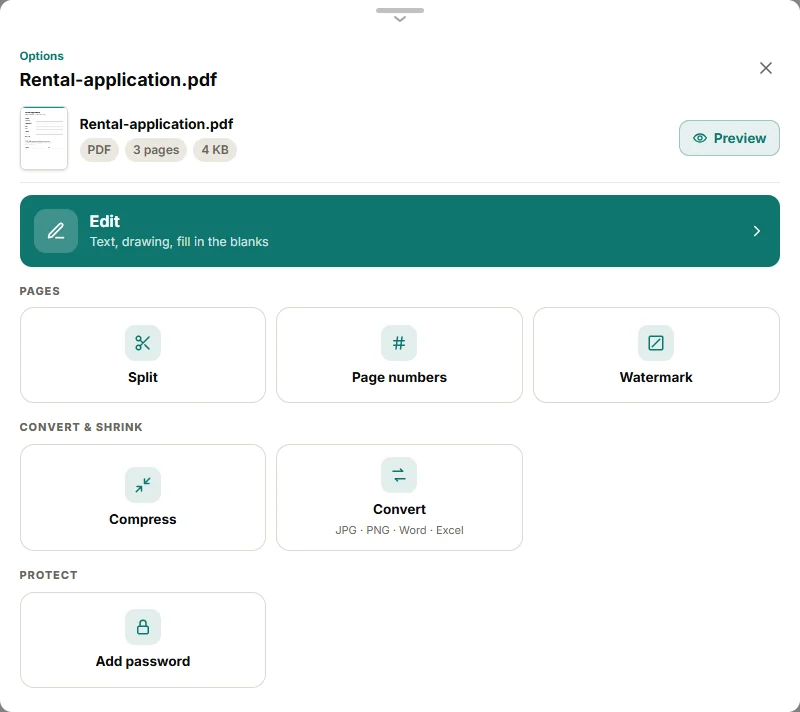
Choose the PDF and press Add password
On the EditFlip home page, press Choose files and pick the PDF. In the panel, Add password is under Protect.
- Step 2
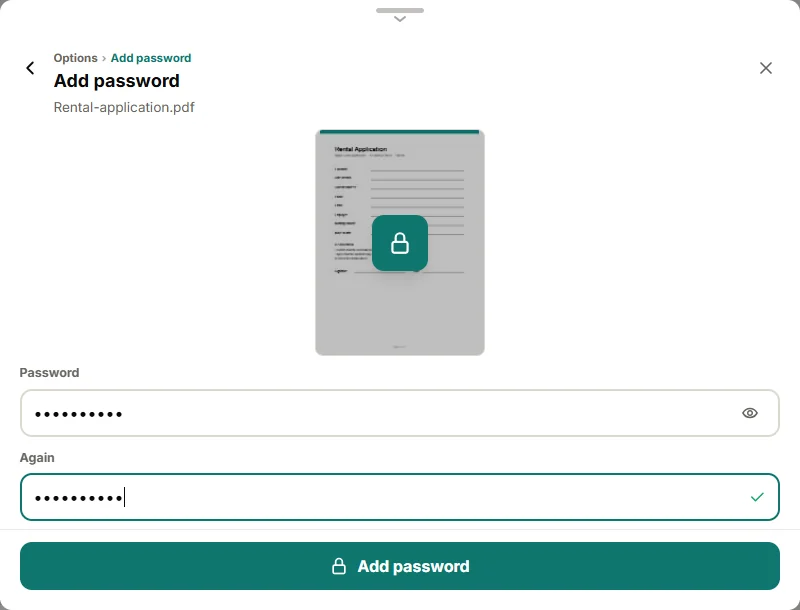
Type the password twice
Type the password under Password, then the same under Again. A tick appears when they match. The eye button shows what you typed, so you can check it.
- Step 3
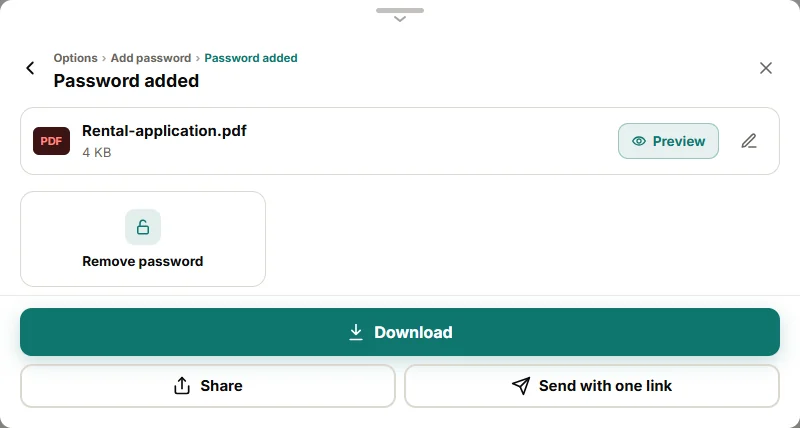
Download the locked PDF
Press Add password. The PDF is ready with the same name. Press Download, or Share on a phone. From now on it asks for the password when it opens.
How strong the lock is
EditFlip uses AES-256 encryption, the same strength that professional PDF software uses for a password to open. Without the password the pages cannot be read, not just hidden behind a prompt.
The weak point is never the encryption. It is a short or obvious password. Use at least three or four words or a mix of letters and numbers that is not your name, a birthday or “1234”.
Write the password down
A strong PDF password cannot be recovered. Microsoft says the same about Word’s document passwords: if you lose or forget it, Word cannot recover it for you. A PDF works the same way.
Before you delete the unlocked original, keep the password somewhere safe, like your password manager.
Sharing the password
Sending the locked PDF and its password in the same email is like taping the key to the door. If that email is forwarded or the inbox is opened, both are there.
Send the file by email and the password by text message or a phone call, or agree on one in advance. For documents you send regularly to the same person, a password you both know saves the step.
On a Mac: Preview
Preview can lock a PDF too. Apple’s steps are to choose File > Export, click the Permissions button, select Require Password To Open Document, enter the password twice, then click Apply and Save.
Apple also notes that if you want a protected copy without locking the original, you enter a new name when you export. Preview can also set an owner password that controls printing and copying.
A password to open, not a lock on printing
Some PDFs open freely but block printing or copying. Those limits are easy to get around, and many apps simply ignore them.
The password EditFlip adds is the one that matters: nothing in the file can be read without it. The same password also lets you take it off again later.
Before you send it
Open the downloaded PDF once and type the password, to be sure it is the one you meant. A typo you did not notice twice is rare, but the eye button makes it rarer.
If the PDF needs other changes, like a signature or page numbers, do them first and add the password last.
AES-256 password to open any PDF, in a few seconds. Free, no account, and neither the file nor the password leaves your device.
Add a password on EditFlip →Questions
Is a PDF password secure?
Yes, with a good password. EditFlip uses AES-256 encryption, so the pages cannot be read without it.
Can I remove the password later?
Yes. Open the PDF on EditFlip, type the password and press Remove password.
What if I forget the password?
It cannot be recovered. Keep the unlocked original or write the password somewhere safe.
Is my PDF or password sent anywhere?
No. EditFlip adds the password inside your browser. Neither the file nor the password leaves your device.