
In short
- Type a word, choose how it looks, add it to every page.
- A watermark marks a document. It does not lock it.
- Add a watermark to your PDF for free
A contract still being negotiated. A price list for one client only. A copy of your ID sent to a landlord. A watermark across the page says at a glance what the document is, and makes it harder to pass off as something else.
This guide shows how to add one to a PDF in your browser, which settings to choose for which job, and what a watermark can and cannot do.
On EditFlip, step by step
- Step 1
Choose the PDF and press Watermark
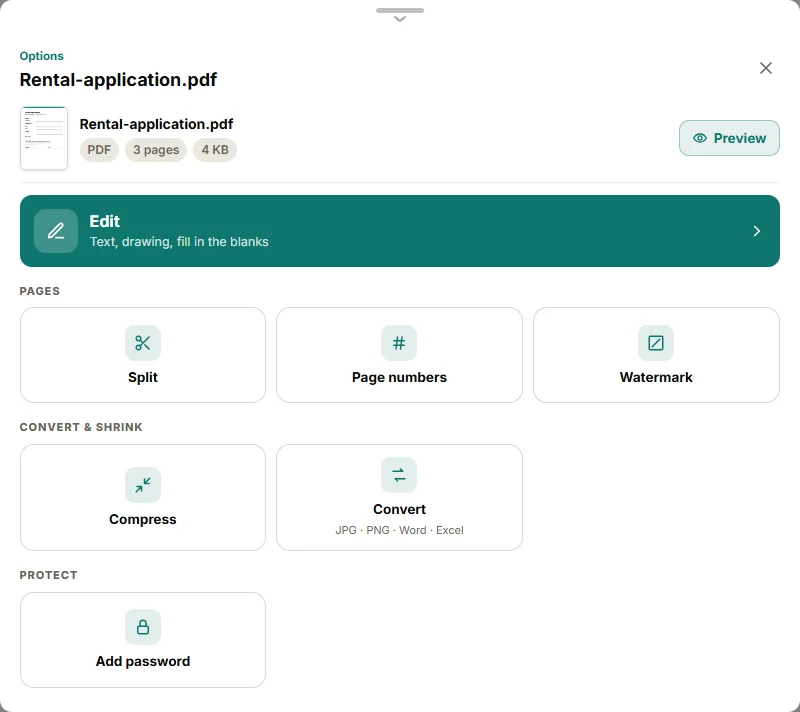
On the EditFlip home page, press Choose files and pick the PDF. In the panel, Watermark is under Pages.
- Step 2
Type the word and choose the look
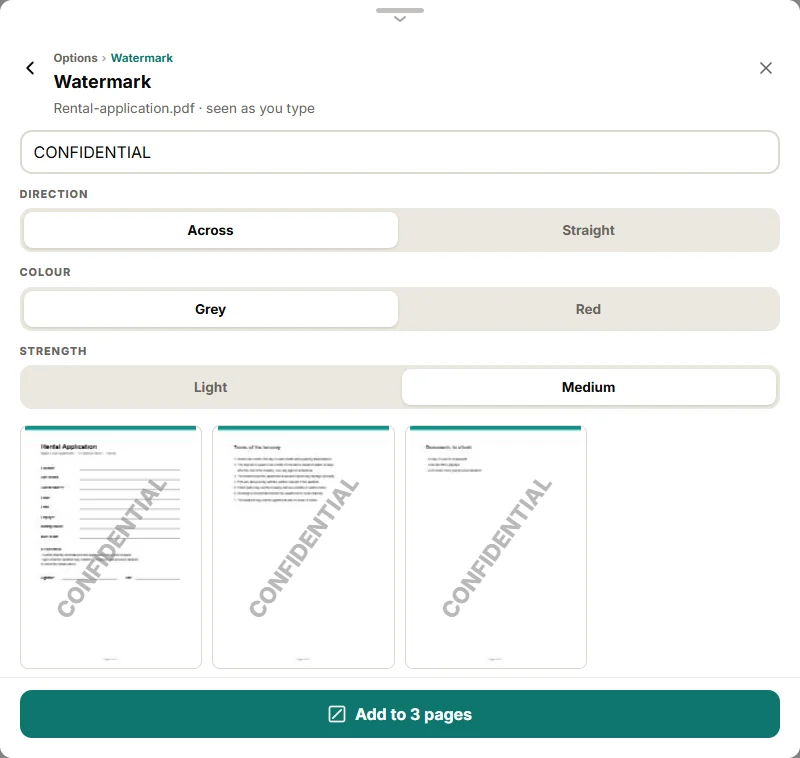
CONFIDENTIAL is filled in, so type your own word over it. Choose Across, corner to corner, or Straight. Choose Grey or Red, and Light or Medium strength.
- Step 3
Check the pages
Every page is shown with the watermark as you type, so you can see how it sits on your document before you add it.
- Step 4
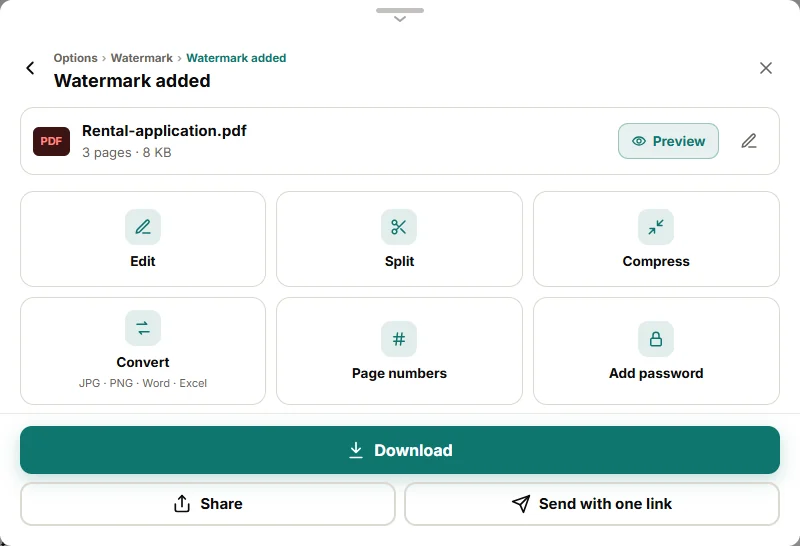
Add it and download
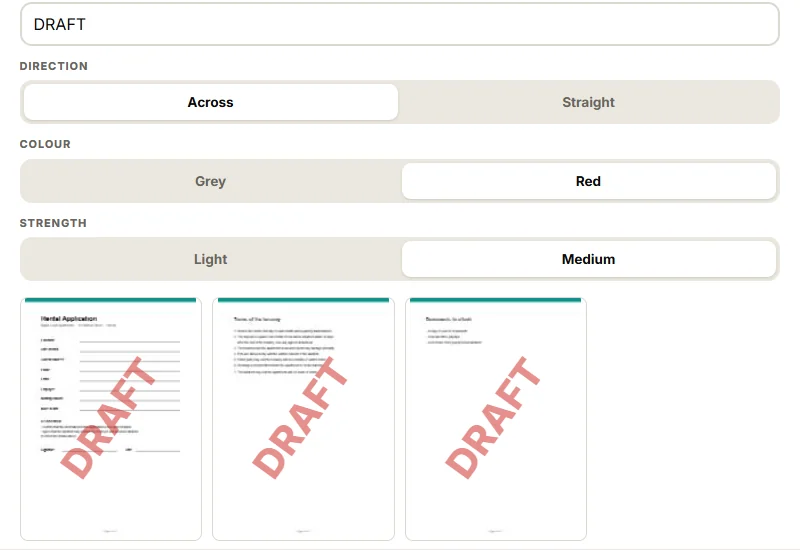
Press Add to 3 pages, or however many your PDF has. The watermark is on every page. Press Download, or go on with Add password.
What a watermark is for
A watermark is a large, faint word across the page. It tells the reader the status of the document, like DRAFT, SAMPLE or CONFIDENTIAL, without hiding the content.
On a copy of a personal document, a watermark such as “Copy for Maple Court rental only” makes it much harder to reuse that copy for something else.
Choosing the look
Across, from the bottom left to the top right, is the classic look and is hard to crop out. Straight sits level in the middle and is easier to read on a page full of text.
Grey is calm and suits most documents. Red stands out and suits DRAFT or VOID. Light keeps the page easy to read. Medium is stronger, for when the mark must not be missed.
Watermark and password together
A watermark does not stop anyone from opening or copying the PDF. It only marks it. For a confidential document, add a password as well, so only the right people can open it.
On EditFlip, Add password is on the result right after the watermark, so it is one more step.
In Word: Design > Watermark
If the document is still in Word, you can add the watermark there before making the PDF. Microsoft’s steps are to go to Design, select Watermark and choose a preset such as DRAFT, or open Custom Watermark for your own text.
Microsoft notes that these steps apply to the desktop versions of Word on Windows and Mac.
Your own words
Short words work best across a page: DRAFT, COPY, SAMPLE, VOID. A longer phrase is made smaller to fit, so it is lighter on the page.
Keep personal details out of the watermark itself. The point is to mark the copy, not to add more information to it.
Your word across every page, across or straight, grey or red. Seen as you type. Free, no account, and your PDF stays on your device.
Add a watermark on EditFlip →Questions
How do I add a watermark to a PDF for free?
Open the PDF on EditFlip, press Watermark, type your word, choose the look and press Add.
Can I see it before I add it?
Yes. Every page shows the watermark as you type and change the settings.
Does a watermark protect my PDF?
It marks it, but anyone can still open it. Add a password too for a confidential document.
Is my PDF uploaded?
No. EditFlip adds the watermark inside your browser, so the PDF stays on your device.