
In short
- Choose the locked PDF, type its password once, download it unlocked.
- You need the password: removing it is not the same as breaking it.
- Remove a PDF password for free
Bank statements, phone bills and payslips often arrive locked with a password like your date of birth. That is fine the first time. It is less fine when you open them every month, or need to merge, print or upload them somewhere that cannot open a locked file.
If you know the password, you can save a copy without it in under a minute. This guide shows how, explains why it needs the password at all, and covers PDFs that open fine but refuse to print.
On EditFlip, step by step
- Step 1
Choose the locked PDF
On the EditFlip home page, press Choose files and pick the PDF. EditFlip sees that it asks for a password and opens Remove password straight away.
- Step 2
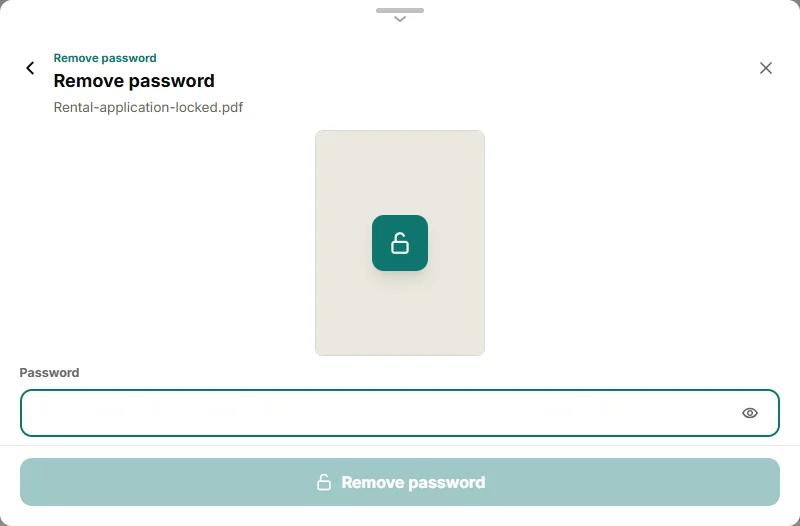
Type the password
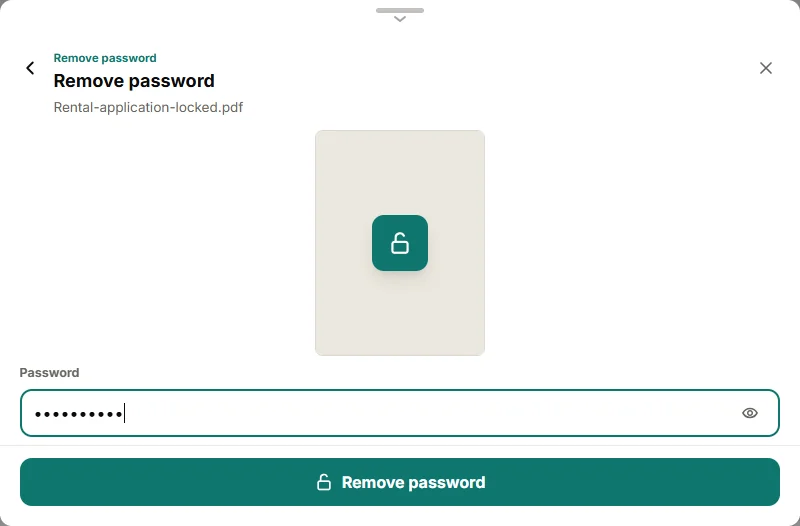
Type the PDF’s password under Password. The eye button shows what you typed. Press Remove password.
- Step 3
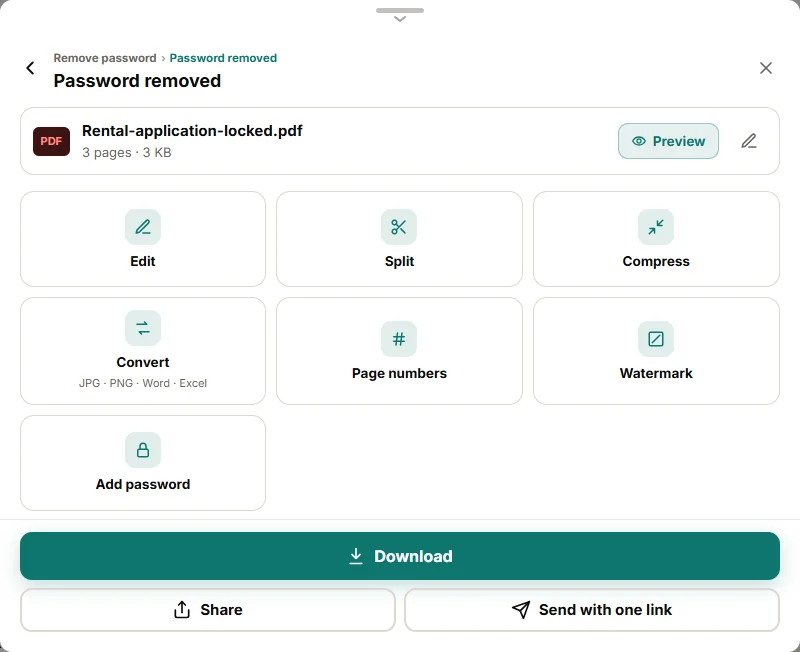
Download the unlocked copy
Password removed. Press Download for a copy that opens without a password. Every tool is available on it right away, like Merge, Edit or Compress.
Why it needs the password
A PDF locked with a password to open is encrypted: its pages are scrambled with that password as the key. To write a copy without the lock, the pages first have to be read, and only the password can do that.
So removing a password is not guessing or breaking it. It is opening the file once, as you would anyway, and saving it without the lock.
If you do not know the password
Ask whoever sent the file. Banks and employers usually say in the email or on their website what the password is made of, such as your date of birth or part of your ID number.
If it is your own file and the password is lost, the honest answer is that a strong password cannot be recovered. Microsoft says the same of Word’s document passwords: if you lose or forget it, Word cannot recover it for you.
PDFs that open but will not print
Some PDFs open without a password but block printing, copying or changes. Those limits are not encryption of the pages, only a request to apps to behave.
EditFlip opens such a PDF without its limits, so you can print it, edit it or merge it straight away, without being asked for anything.
On a Mac: Preview
Preview can change a PDF’s protection too. Apple describes File > Edit Permissions, where, for a PDF that has an owner password, you can change the password protection options or set a new password.
Apple notes that the changes take effect the next time the PDF is opened.
Keep the unlocked copy safe
The password was there for a reason: the file probably holds personal or financial details. Once it is unlocked, anyone who can reach the file can read it.
Keep the unlocked copy in a private folder, and do not leave it in a shared drive or a download folder on a shared computer. You can put a new password on it later with Add password.
Type the password once, download a copy that opens freely. Free, no account, and neither the file nor the password leaves your device.
Remove a PDF password on EditFlip →Questions
Can I remove a PDF password without knowing it?
No. The password is the key that decrypts the pages, so you need it once to save a copy without it.
Why can I open my PDF but not print it?
It has limits on printing or copying, not a password to open. EditFlip opens it without those limits.
Is my password sent anywhere?
No. EditFlip removes the password inside your browser, and neither the file nor the password leaves your device.
Will the PDF change in any other way?
No. The pages, text and images stay the same. Only the lock is removed.